 Vidova
Keep the film in view
The editor has one fixed layout. The left side shows Chat or Assets. The preview and the timeline are on the right. Nothing floats over the film.
Use the Chat and Assets tabs above the left side to switch between them. Drag the line between the left side and the preview to make it wider. Drag the line above the timeline to make the timeline taller. Press Cmd/Ctrl + B to hide the left side and give the preview more room. Double-click a dividing line to put it back to its default size.
A dot on the Chat tab shows that the agent is working while you use Assets. A solid dot means it has replied and you have not looked yet.
Select a clip on the timeline and the Inspector opens beside the preview. Clear the selection or choose Close and the Inspector goes away. Select an asset in Assets to see its details in the same place. Use the Inspector button in the header to open Scene settings.
On a phone, the preview is at the top and one tool fills the space under it. The Timeline tab shows the Inspector under the timeline while a clip is selected.
Choose the right tool
| Tool | Use it for |
|---|---|
| Chat | Request edits and review the agent’s work. The agent also generates media, transcribes speech, and runs analysis. |
| Assets | Find the project’s media and elements, upload files with Add files, reuse your uploads from My Library, and find animated GIFs. The + on a card puts it on the timeline. |
| Timeline | Arrange, trim, and split clips. Add puts new text, media, elements, overlays, and camera moves at the playhead. |
| Inspector | Change the selected clip. It opens beside the preview when you select one. The Inspector button at the top right opens Scene settings. |
| Export | Render an MP4 in the cloud or on this device, or save an editable package. |
The account’s Library page holds your uploads; Add → Element on the timeline opens the published elements catalog. See Your Library and Elements and components for their separate workflows.
Review the right moment
Click the timeline ruler to move the playhead. The preview shows that time, even when you have a different clip selected. Selecting a title or component does not guarantee that the playhead is inside it.
If an item appears missing, move the playhead between its start and end. For an animated element, scrub farther into the clip: the first frame may be intentionally empty. Check the layer’s visibility and the clip’s opacity before changing the design.
Resolution above the preview changes the preview’s working size. It is separate from the resolution chosen in Export. Use Fit timeline to view to see the film’s full duration, then zoom in for precise cuts.
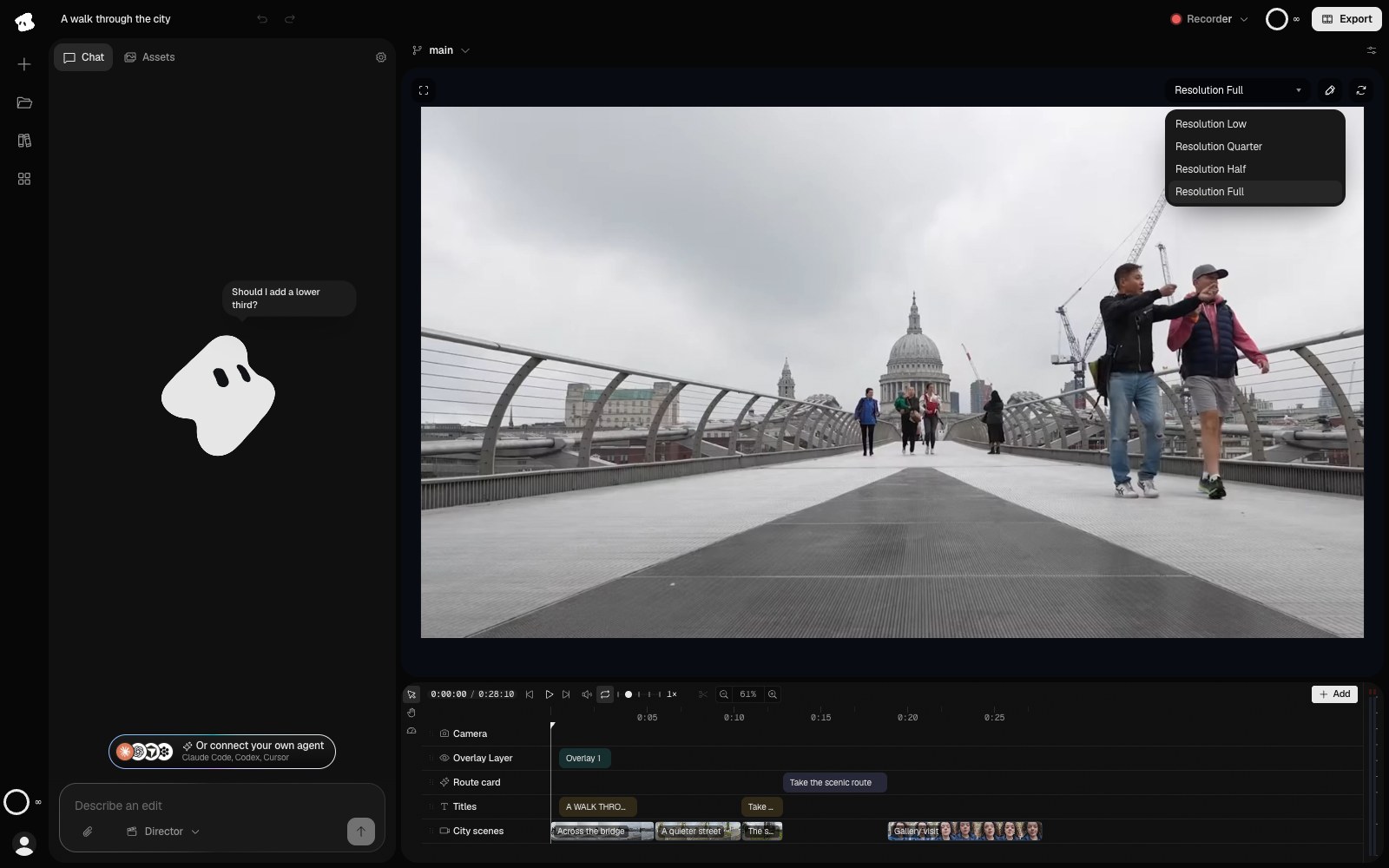
Resolution changes the preview's working size. Export resolution is chosen separately in the Export window.
Select the image to open the original full view.
Editing shortcuts
Use Cmd on macOS and Ctrl on Windows or Linux where a shortcut says Cmd/Ctrl. Leave text fields before using timeline shortcuts; typing and text editing take priority in those fields.
| Shortcut | Action |
|---|---|
| Space | Play or pause the preview |
| Left / Right arrow | Step backward or forward one frame |
| C | Split at the playhead |
| T | Add a text clip at the playhead |
| Cmd/Ctrl + D | Duplicate the selected clips |
| Cmd/Ctrl + C, X, V | Copy, cut, or paste clips; paste goes in at the playhead |
| V / H / R | Selection / Hand / Speed tool |
| Delete or Backspace | Delete the selected keyframe or clip, or close a selected gap |
| Shift + Delete or Backspace | Ripple delete the selected clip |
| Escape | Clear the timeline selection |
| Cmd/Ctrl + Z | Undo |
| Cmd/Ctrl + Shift + Z | Redo |
| Cmd/Ctrl + K | Open the command palette |
| Cmd/Ctrl + / | Show every keyboard shortcut |
Cmd/Ctrl + B shows or hides the left side. Cmd/Ctrl + 6 opens or closes the Inspector. On the timeline, scroll to move through time, Shift-scroll to move through layers, and Cmd/Ctrl-scroll to zoom. See Timeline for what split, delete, and ripple delete do.
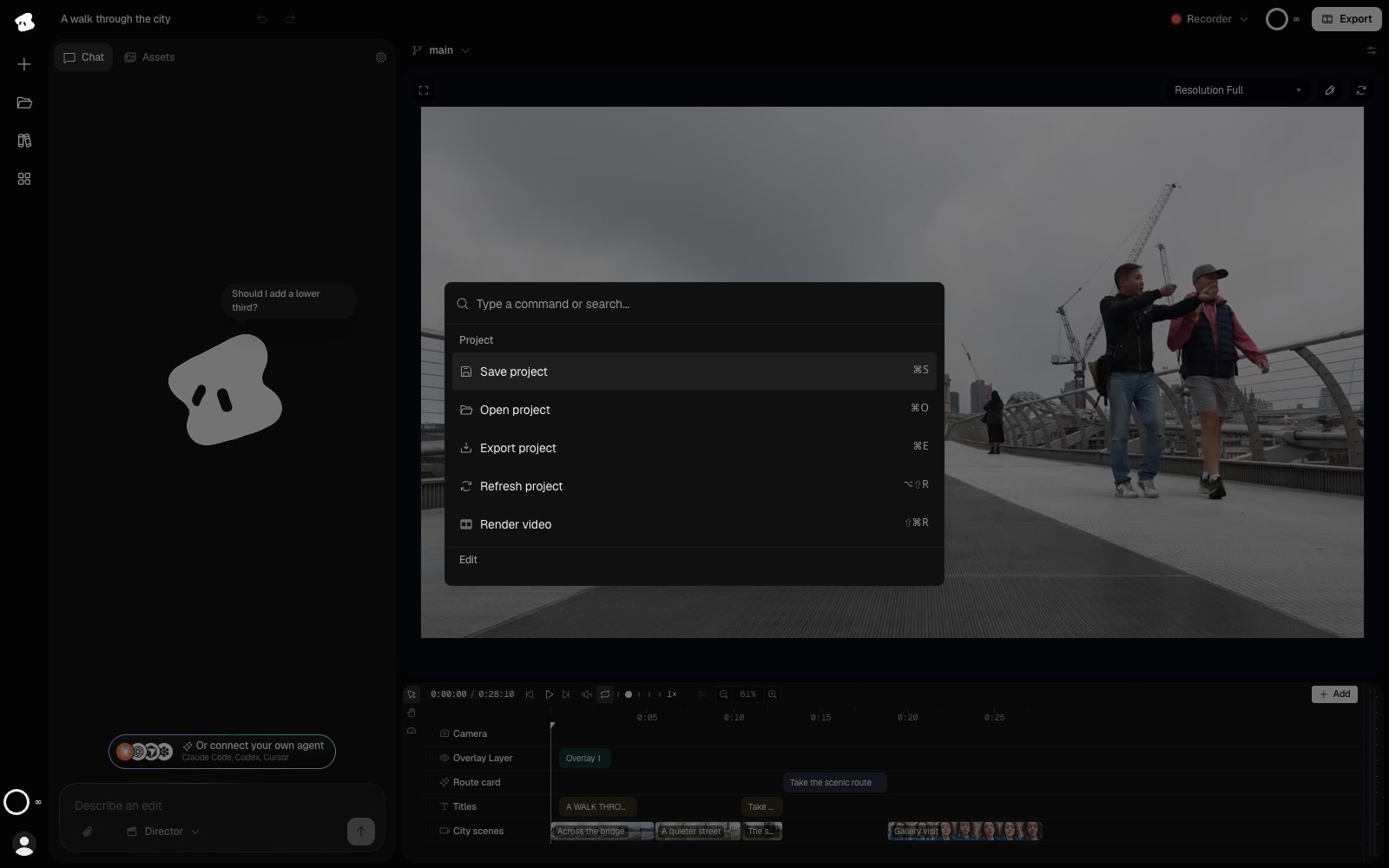
Open the command palette to search for an action. The shortcut shown beside a command is another way to run it.
Select the image to open the original full view.