 Vidova
Set recording defaults
Open the desktop app’s Settings → Recording before the next take. These settings control capture. Preview quality and export settings have separate purposes.
| Setting | What it changes |
|---|---|
| Frame rate | Choose 24, 30, or 60 frames per second for recording. |
| Capture width | Choose a recording width of 1280, 1920, or 2560 pixels. |
| Countdown | Enable a three- or five-second delay before capture starts. |
| Track cursor | Keep cursor movement and click data for the recording. |
| Track keystrokes | Keep key events that can be displayed in the edit. |
| Mirror camera preview | Flip your camera preview. This does not flip the recorded camera video. |
Choose the inputs you need for the demonstration. Turn off keystroke tracking when key events are not part of the tutorial, and avoid entering private information during a take.
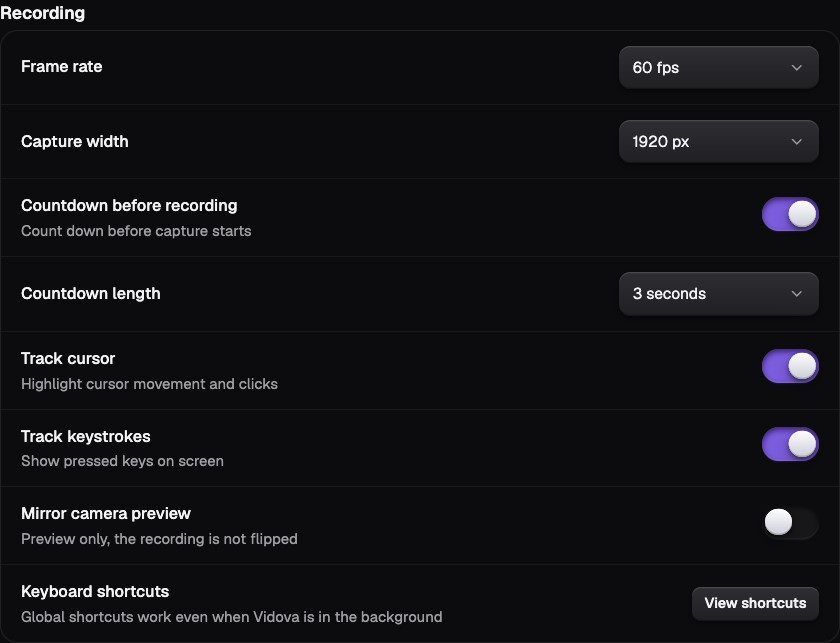
Recording defaults control future captures. Camera preview mirroring changes only the preview.
Select the image to open the original full view.
Grant access to the inputs you use
On macOS, Settings → Permissions shows Screen Recording, Input Monitoring, Microphone, and Camera access. Screen Recording enables screen capture; Input Monitoring supports key tracking. Microphone and Camera are needed when you choose those inputs.
Permission means Vidova is allowed to use a device. It does not mean the device is enabled for every take. Check the recorder’s input switches before you start.
If access is missing, use the permission control and follow macOS’s instructions. Reopen the app if the operating system asks you to, then refresh the permission status in Vidova.
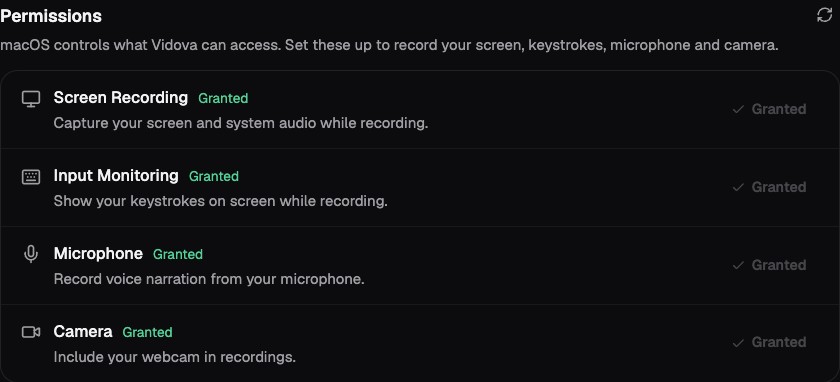
Granted means the app has permission. Choose which inputs are enabled separately in the recorder.
Select the image to open the original full view.
Control recording from another app
In Settings → Recording, choose View shortcuts. Global recording shortcuts work while Vidova is in the background, provided another application has not claimed the same combination.
| Action | macOS | Windows / Linux |
|---|---|---|
| Start recording / open recorder | Option + Shift + Cmd + R | Alt + Shift + Ctrl + R |
| Stop recording | Option + Shift + Cmd + S | Alt + Shift + Ctrl + S |
| Pause or resume | Option + Shift + Cmd + P | Alt + Shift + Ctrl + P |
| Discard recording | Option + Shift + Cmd + Backspace | Alt + Shift + Ctrl + Backspace |
When the recorder is closed, the start shortcut opens it so you can choose a source. Do not confuse the global pause shortcut with Space, which plays or pauses the editor preview.
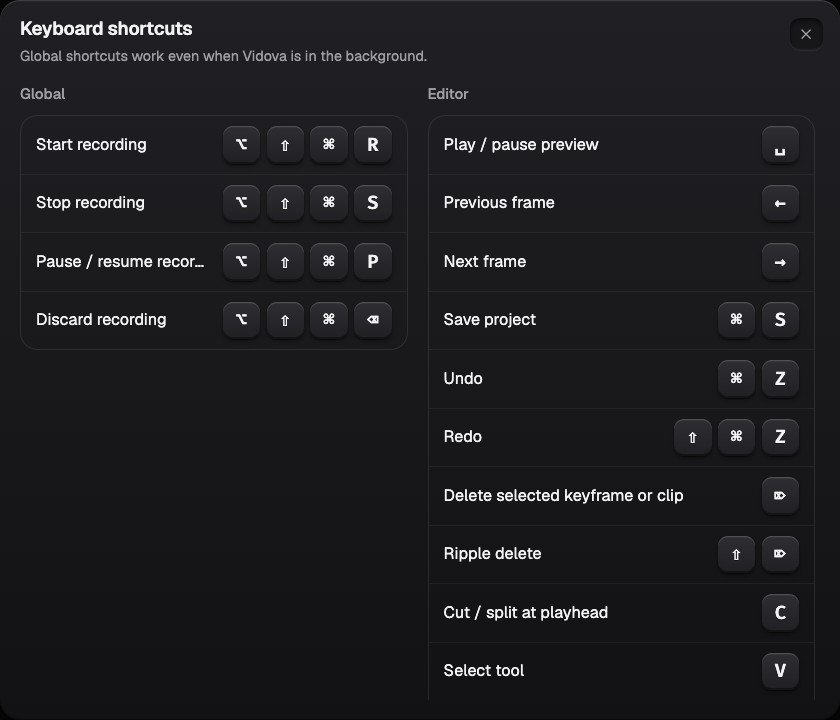
Global recording shortcuts work while another app is in front. Editor shortcuts control the project preview and timeline.
Select the image to open the original full view.
Check the installed version
Open Settings → Updates to see the installed version and update status. Choose Check now to check for an update or What’s New to reopen the installed version’s release notes. Downloaded updates are applied during restart.
The screenshot records version 1.0.60 on October 4, 2026. Use your app’s status for the version available to you.
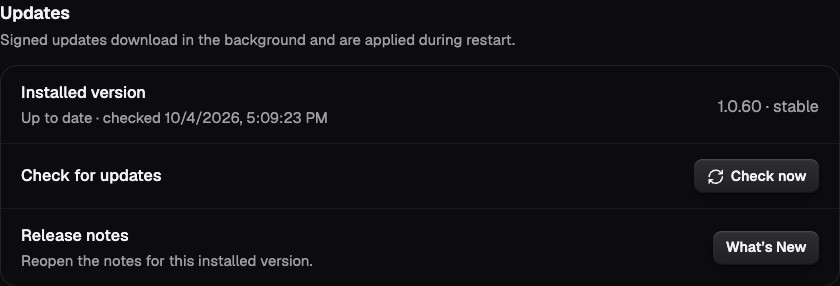
Check for updates or reopen release notes here. Version 1.0.60 is the installed version in this dated capture.
Select the image to open the original full view.