 Vidova
Prepare the words before the take
The desktop recorder’s teleprompter keeps a script in view while you present. Open the recorder, choose Teleprompter, then Edit script. Type your script or use Paste from clipboard, and choose Done to return to the reader.
Write short paragraphs with natural pauses. The word count and estimated reading time help you judge length; the estimate depends on the reading speed you choose.
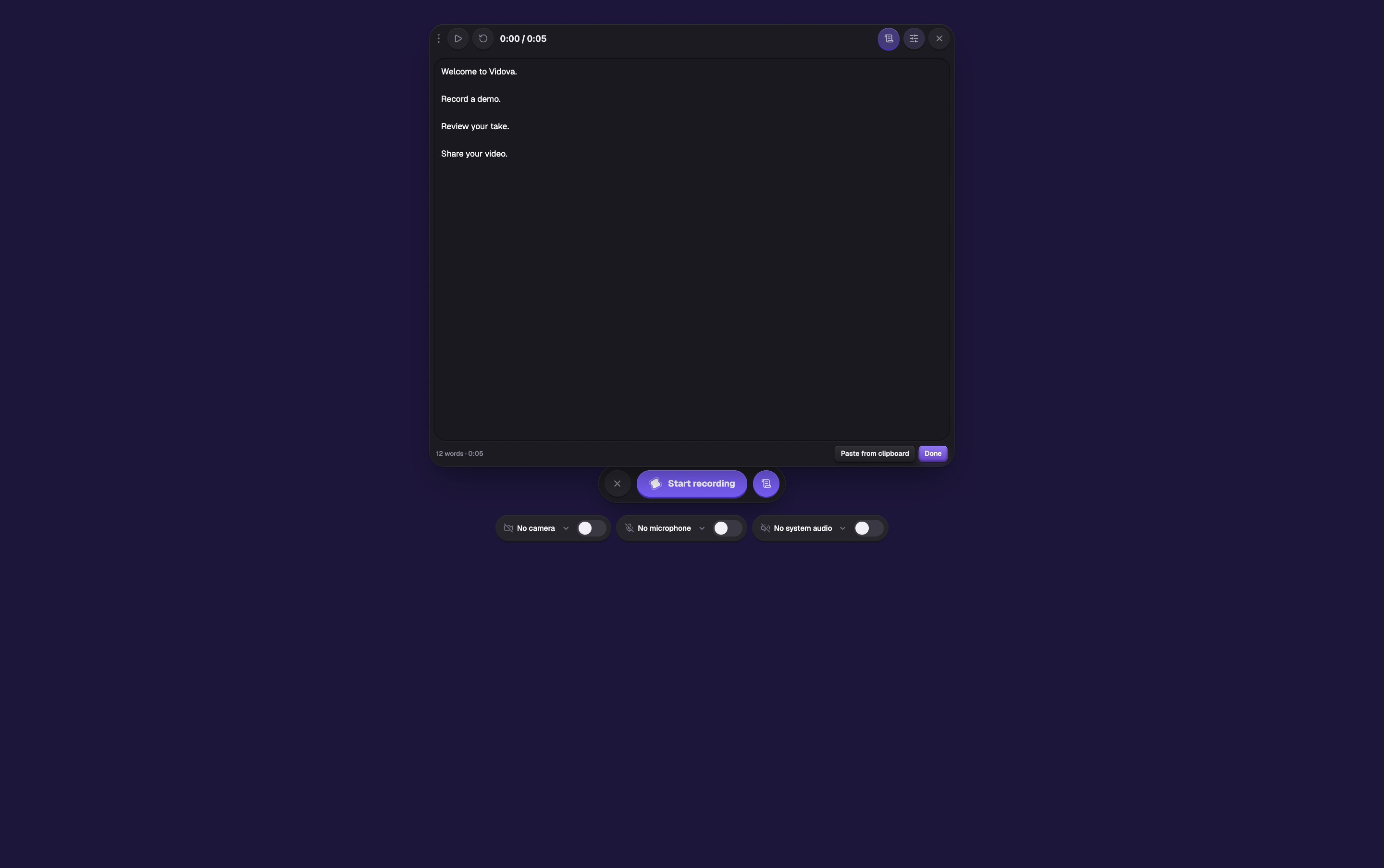
Edit the words first, then choose Done to return to the reader. The estimate changes with script length and reading speed.
Select the image to open the original full view.
Rehearse the scroll
Use Play teleprompter to start scrolling and the same control to pause. Restart teleprompter returns to the beginning. Rehearse at your normal speaking pace before recording.
Close the controls while reading so the text stays clear. Hide teleprompter closes the reader; it does not stop an active recording.
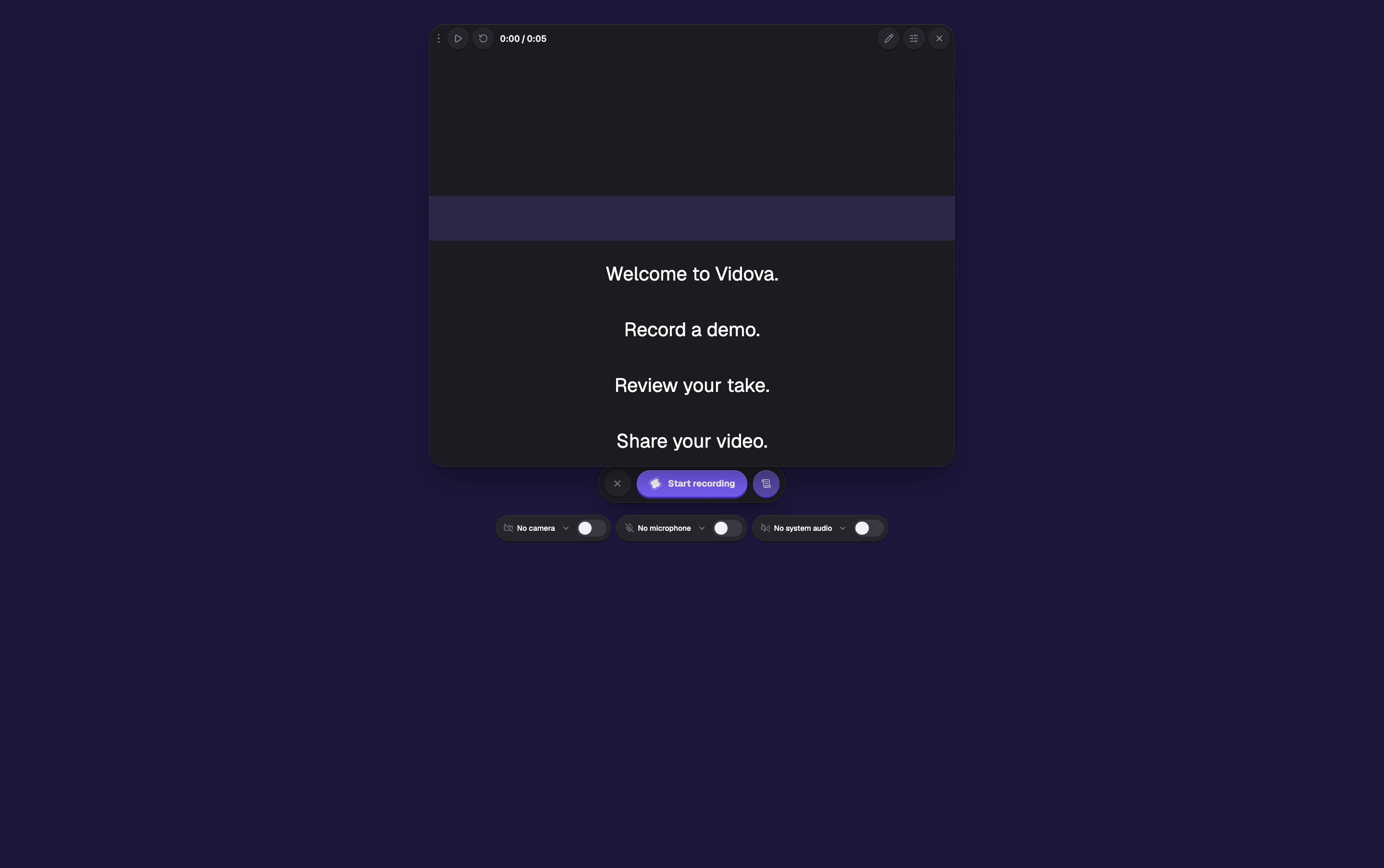
Rehearse with the controls closed. The reader shows your script and a guide for where to look.
Select the image to open the original full view.
Make the script comfortable to read
Open Teleprompter controls to adjust the reader. Speed is measured in words per minute, independently of the video’s frame rate.
| Control | Use it to |
|---|---|
| Speed | Set a pace between 60 and 320 words per minute. |
| Text size and line spacing | Make each line readable at your viewing distance. |
| Reading guide | Choose Off, Line, or Band to mark where to look. |
| Width and height | Change how much of the screen the reader occupies. |
| Opacity | Adjust the reader’s background opacity. |
| Mirror horizontally / vertically | Orient the text for your reading setup. |
| Start with recording | Start scrolling when a take starts. |
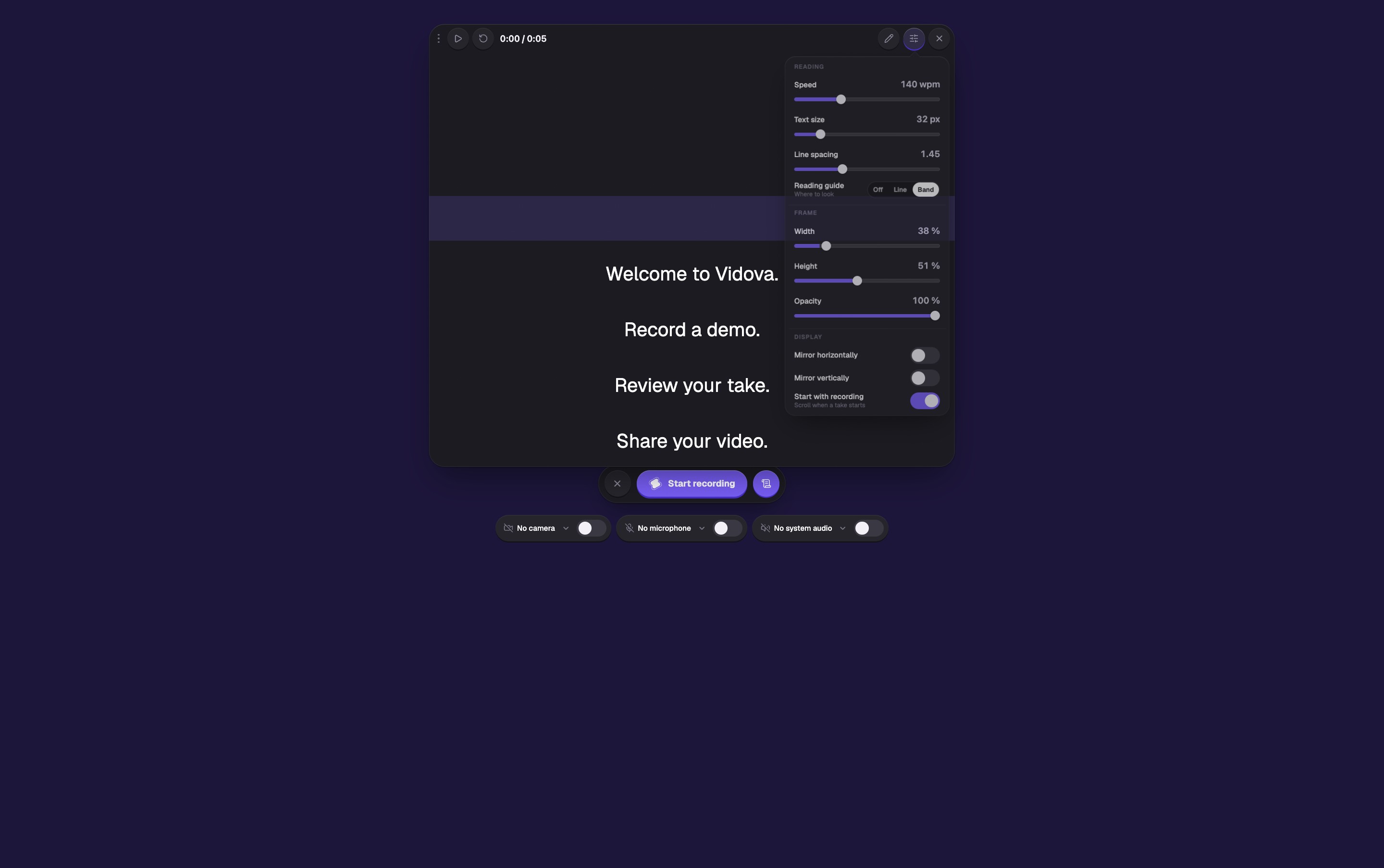
Adjust reading pace and appearance independently of the recording’s frame rate.
Select the image to open the original full view.
Adjust the pace without opening controls
On macOS, hold Option + Shift + Cmd and press Space to toggle scrolling, Up to increase speed, or Down to decrease it. On Windows or Linux, use Alt + Shift + Ctrl with the same keys.
These control the teleprompter. Use the separate recording shortcuts in Recorder settings and shortcuts to pause or stop the take itself.