 Vidova
Choose what should move
Use a transition to control a clip’s entrance or exit, an Animation preset for movement during the clip, or keyframes to set a property at particular times. Text clips also have letter and word reveals under Content.
Start with the result you want: “fade in the title”, “slowly zoom into the photo”, or “move the logo from left to center”. Then choose the control that matches it.
Set an entrance or exit
- Select the clip and open Transitions in the Inspector.
- Choose In, Out, or Both.
- Select a transition and adjust its duration in seconds.
- Preview the beginning and end of the clip with the surrounding footage.
Options include fades, dissolves, slides, lens effects, and more pronounced motion effects. Choose None to remove the transition from the selected end. Use In and Out separately when the entrance and exit should differ.
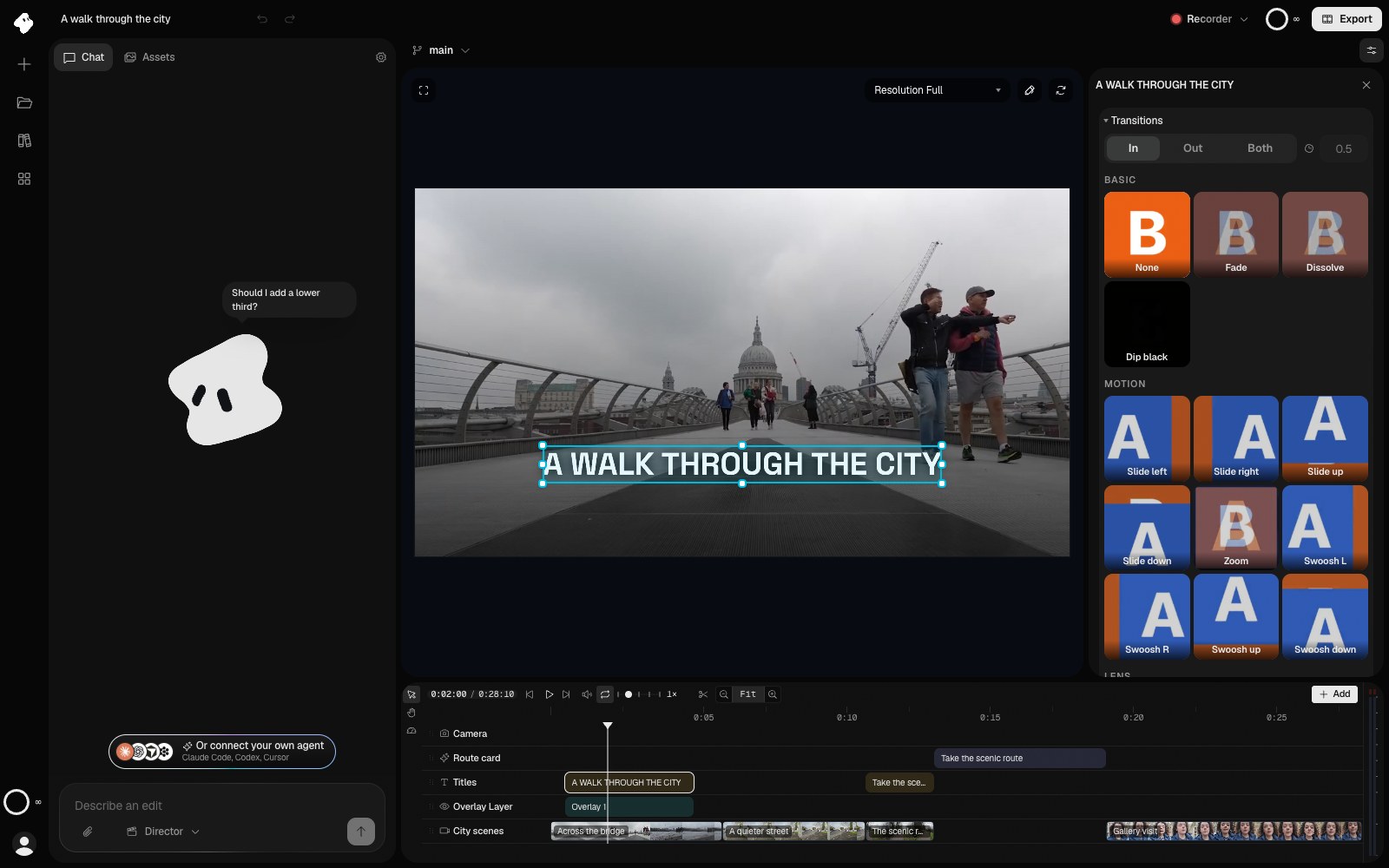
Choose which end of the clip to change before selecting a transition. None is selected here; the title is visible at the playhead.
- Choose In, Out, or Both before choosing a transition.
Select the image to open the original full view.
Add movement during a clip
Open Animation for presets such as Hover, Pulse, Float, Glow, Zoom in, and Zoom out. Adjust the intensity, then play the full clip to see how the motion works with its content.
Keep reading time in mind when animating a title. A subtle movement can keep a still image active; a large movement may draw attention away from the words.
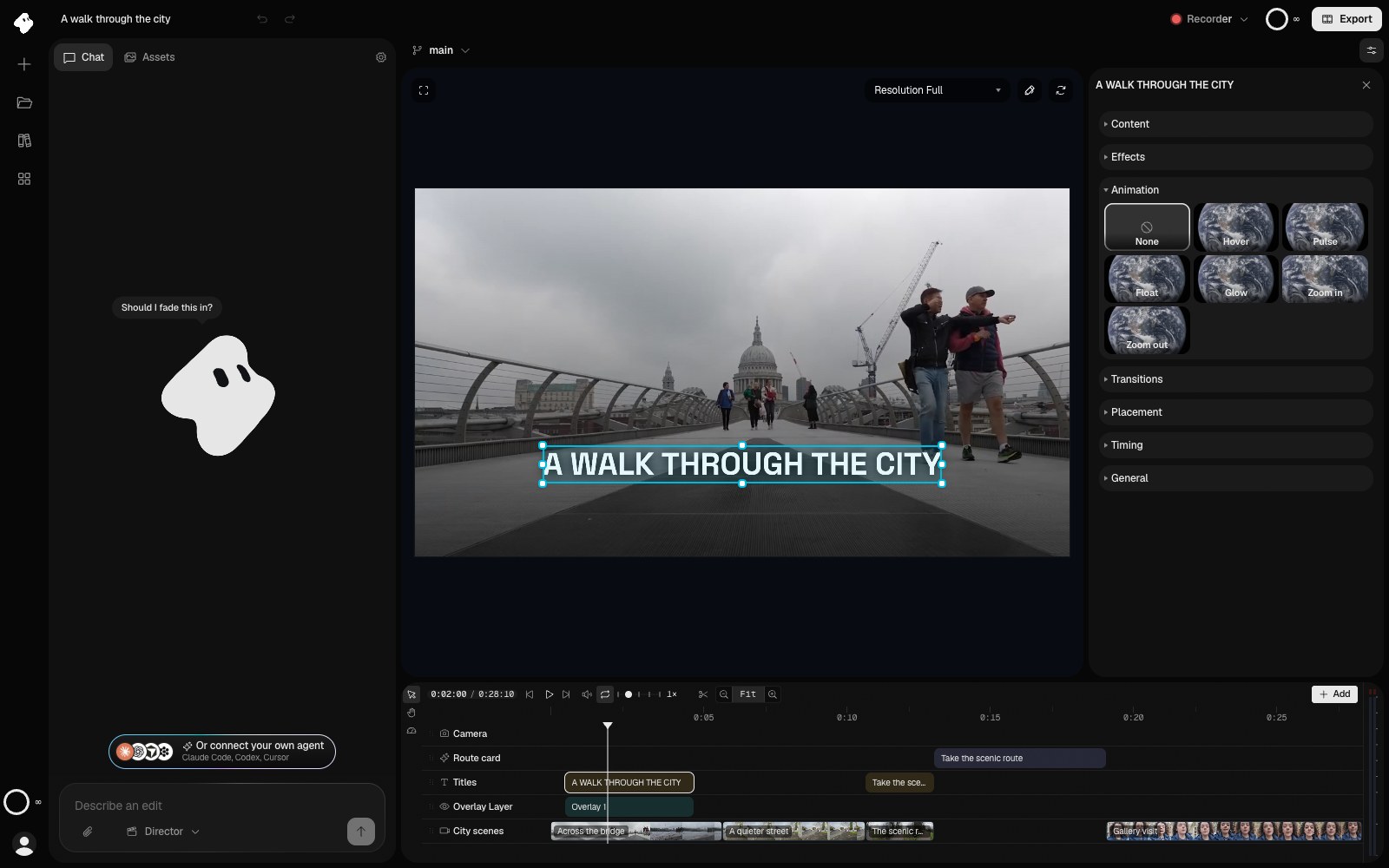
Animation presets add movement during a clip. Glyph animation and entrance or exit transitions have separate controls.
Select the image to open the original full view.
Animate a property with keyframes
A keyframe stores a property’s value at a moment within the clip. Controls that support keyframes show a diamond button.
- Select the clip and place the playhead at the start of the movement.
- Set the property’s starting value and choose Add keyframe.
- Move the playhead to the end of the movement and change the value. Once that property is animated, editing it records a keyframe at the playhead.
- Scrub between the two points to review the result.
For a simple move, animate X or Y in Placement. Use the diamond at an existing keyframe to remove that point, or Clear keyframes to remove animation from the property.
Keyframes belong to the clip. When changing an animated value, check the playhead first so you edit the intended moment.
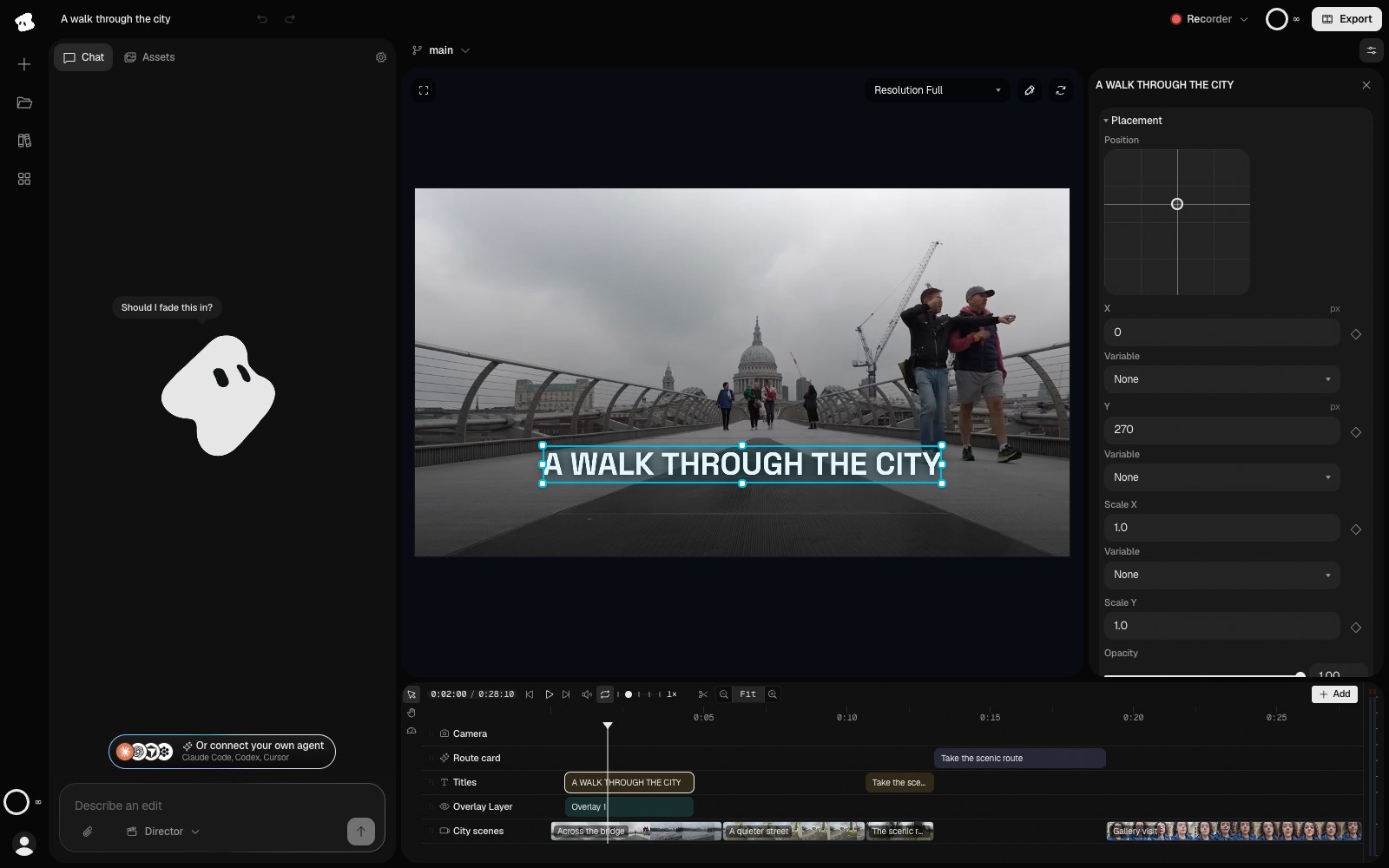
Placement positions the selected title. Diamonds beside supported controls add or select keyframes.
Select the image to open the original full view.
In this example, the title begins at film time 0.5 seconds. Its first Y keyframe is 390; its second is 270 at film time 2 seconds. That is a 1.5-second move within the clip.
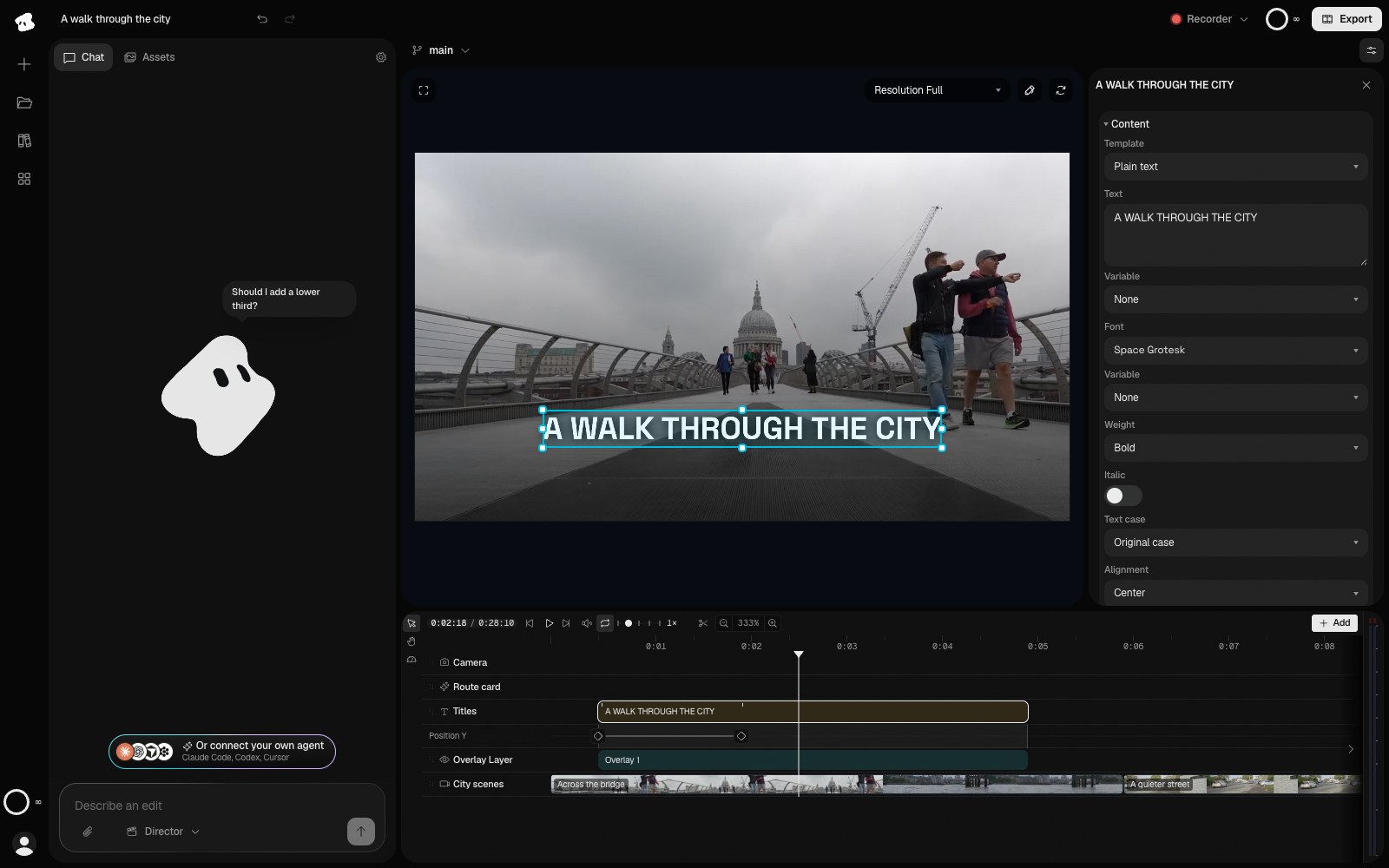
The first point starts the title lower in the frame; the second ends the move at 2 seconds in the film. The lane shows where the movement starts and ends.
- The first Y keyframe starts the title lower in the frame.
- The second keyframe ends the move.
Select the image to open the original full view.