 Vidova
Create and open projects
The home screen lists your projects. Select one to continue editing, start from a prompt and attached footage, or choose Blank project. Rename an open project by editing its title in the workspace header.
Project changes sync to your account automatically while connected. Let uploads and synchronization finish before switching devices. An agent connected to the same account can open and edit your hosted projects.
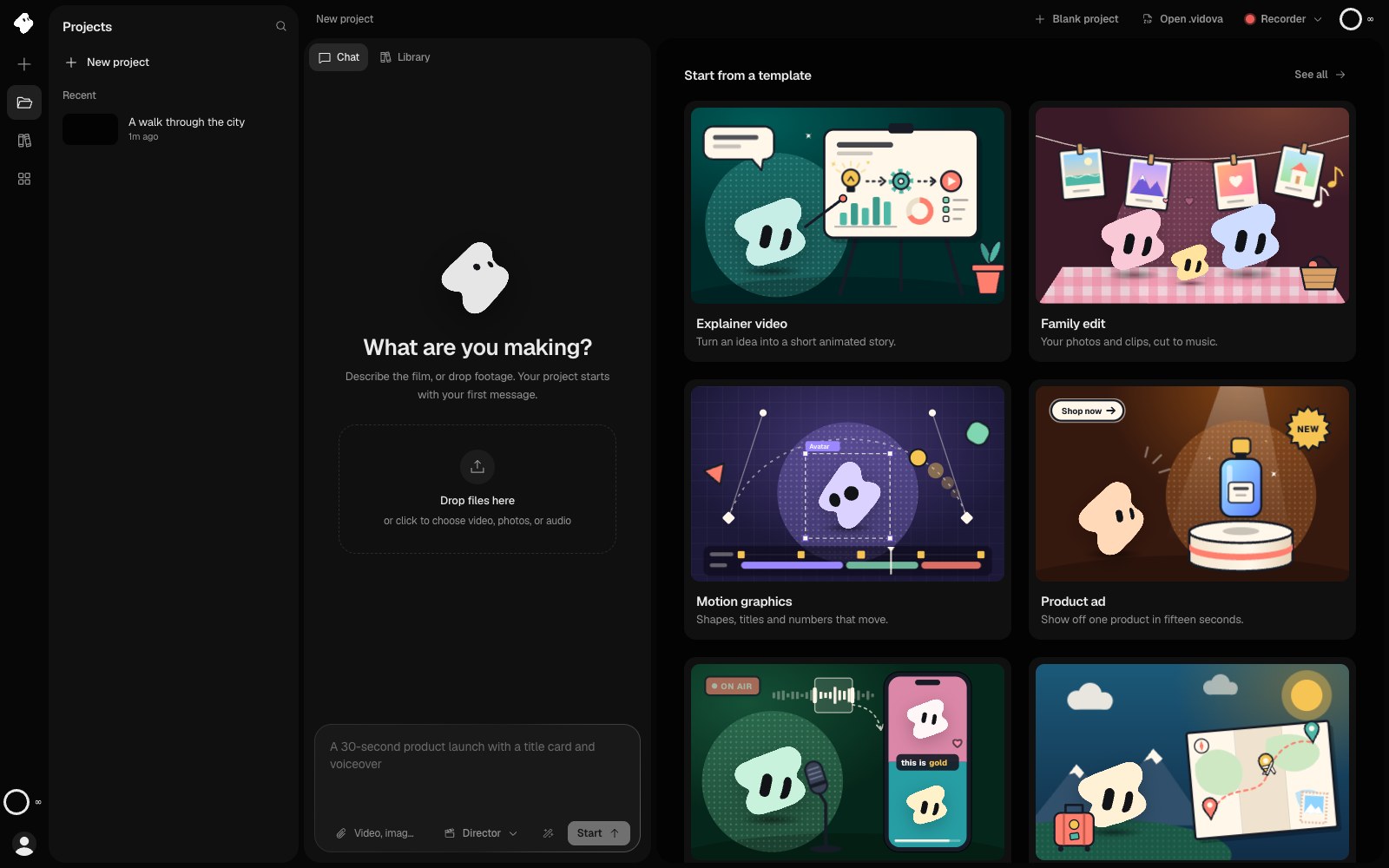
Open the Projects panel at the left edge to reopen a film, or describe a new one in the prompt box.
Select the image to open the original full view.
Set the canvas
Clear the clip selection to show the project’s Scene settings in the Inspector. Set the name, resolution, frame rate, and background there. Resolution presets include YouTube, Shorts, Instagram, LinkedIn, and X; you can also enter a custom width and height.
Choose portrait, landscape, or square dimensions before arranging the edit. The same shot may need a different crop in a vertical video, and a title that fits across a wide frame may need two lines in a narrow one.
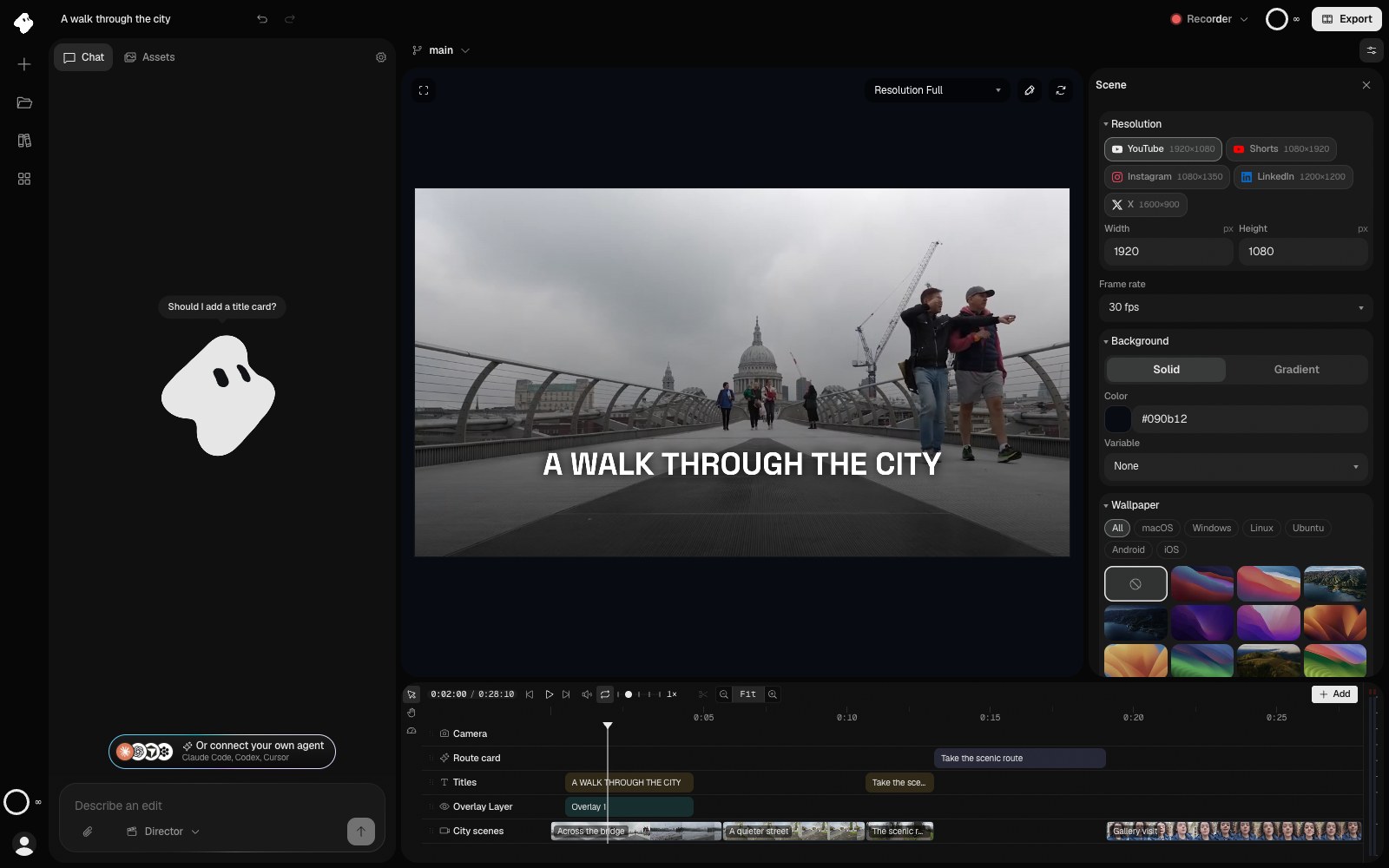
Clear the clip selection and choose the Inspector button to edit Scene settings. Choose a preset or enter the canvas dimensions and frame rate.
Select the image to open the original full view.
Choose an export format
| Format | Use it for |
|---|---|
| MP4 | A finished video to play, upload, or share. |
| Vidova (.vidova) | An editable project package with media, ready to reopen in Vidova. |
| Premiere Pro | An FCPXML package with source media for an editable timeline handoff. |
| DaVinci Resolve | An OTIO package with source media for an editable timeline handoff. |
The Premiere Pro and DaVinci Resolve options include an Include captions setting. Review the imported timeline in the destination editor before continuing your edit.
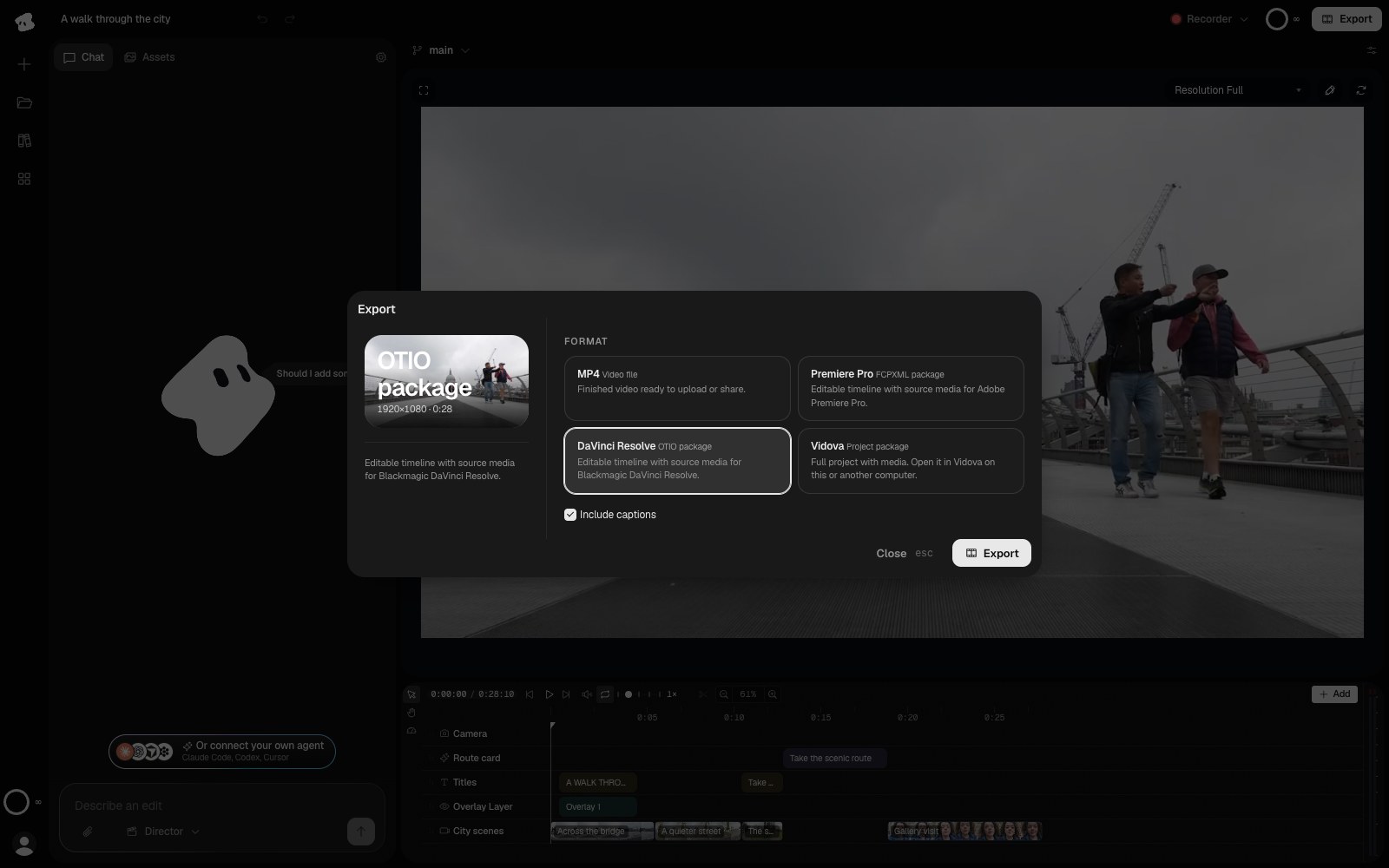
For an editable handoff, choose the destination editor and whether to include captions. Review the imported timeline in that editor.
Select the image to open the original full view.
Render on this device or in the cloud
This device makes the MP4 in your browser and is free. It offers resolutions up to 4K, frame rates up to 60 fps, H.264 or H.265, and five quality steps. What it can encode depends on your browser and device. Keep the page open until the export finishes.
Cloud makes the MP4 on Vidova’s servers and keeps going after you leave. It uses H.264 at 24, 25, or 30 fps, at 720p, or 1080p on a paid plan or with a Project Pass. All media must be uploaded. See Exporting and sharing.
Reopen a project package
Choose Open .vidova on the home screen and select your package. You can also drop one .vidova package onto the home prompt. Import it by itself, without mixing it with loose media files.
Use this package when you need the editable project and its media. An MP4 contains the rendered film.
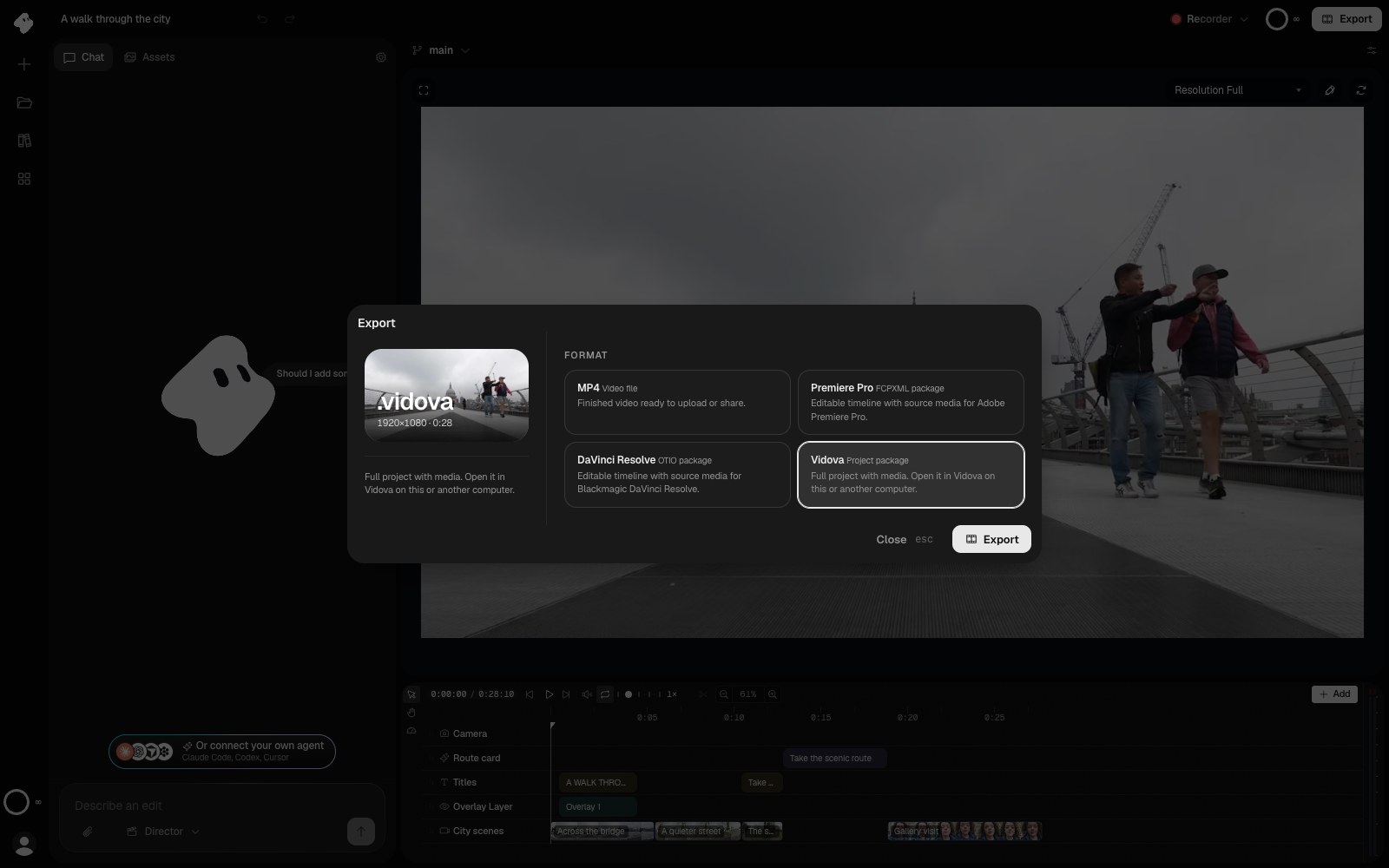
A Vidova package keeps the editable project and its media together. Reopen it with Open .vidova on the Projects page.
Select the image to open the original full view.