 Vidova
A workspace for the whole edit
Vidova is an AI video editor that combines a visual timeline with an editing assistant. Bring your footage, describe the result you want, and work through the edit in the same project. You can cut a shot yourself, ask chat to build a sequence, add generated media, and export the finished film.
The platform connects your projects, reusable media Library, editing tools, and cloud services through your account. A project holds the composition: which clips appear, when they play, how they look, and how they sound. Library holds media you can use across projects.
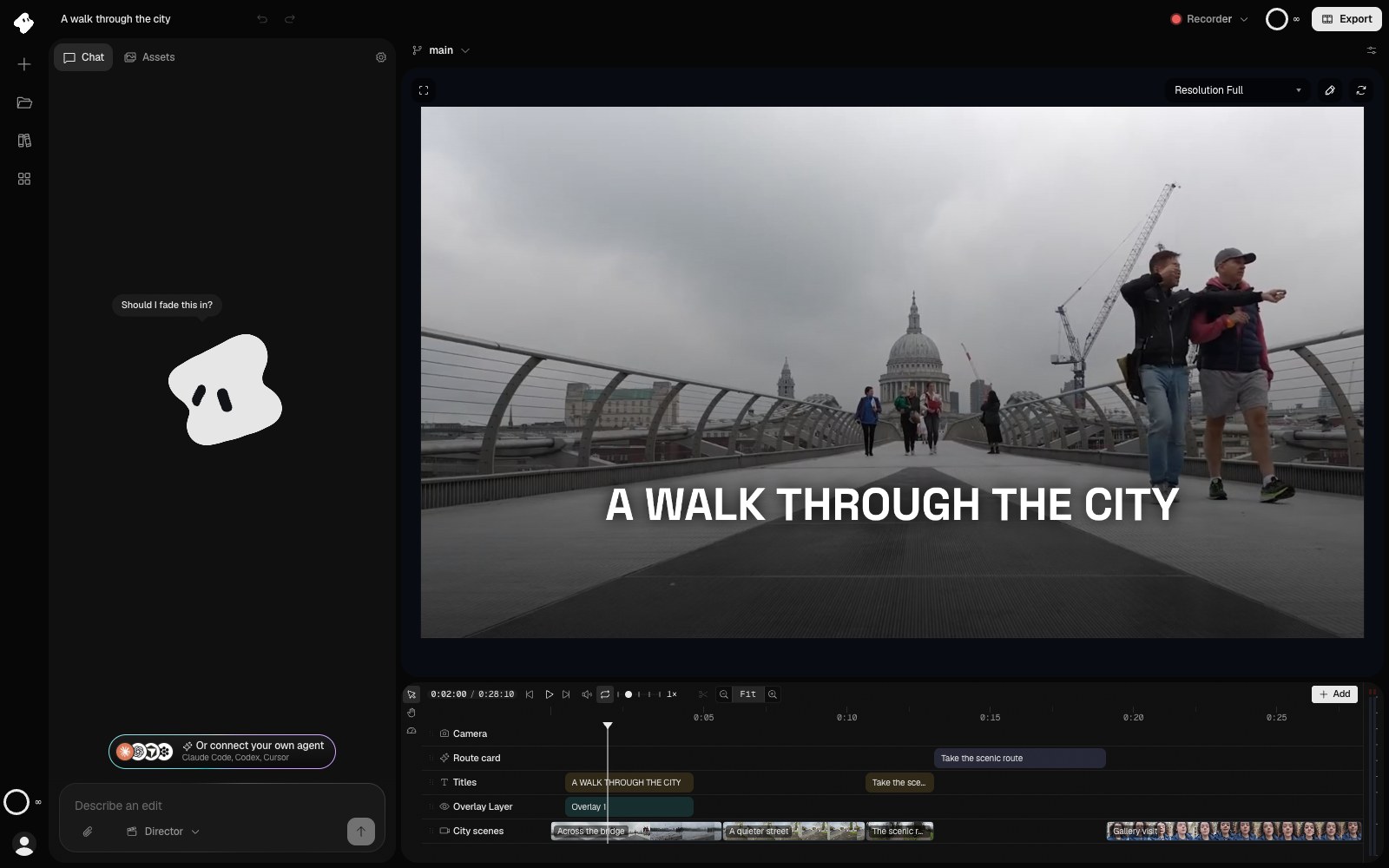
Chat is on the left; the preview and the timeline are on the right. The playhead shows the opening title over the bridge shot.
- Preview: the film at the playhead.
- Timeline: clips on layers. The top row is in front.
- Add puts a new clip at the playhead.
Select the image to open the original full view.
Use chat and direct controls together
Chat is useful for an initial assembly and changes you can describe: “Open with the bridge shot,” “Add captions,” or “Make a shorter version.” The timeline and Inspector give you direct control over timing, framing, typography, sound, and animation.
Both approaches change the same film. Review the preview after a request, refine the result, and keep going. For a connected external agent, the MCP server provides access to your Vidova projects through a compatible client.
Start with Quickstart for a complete first edit, or browse the Feature overview to find a particular tool.
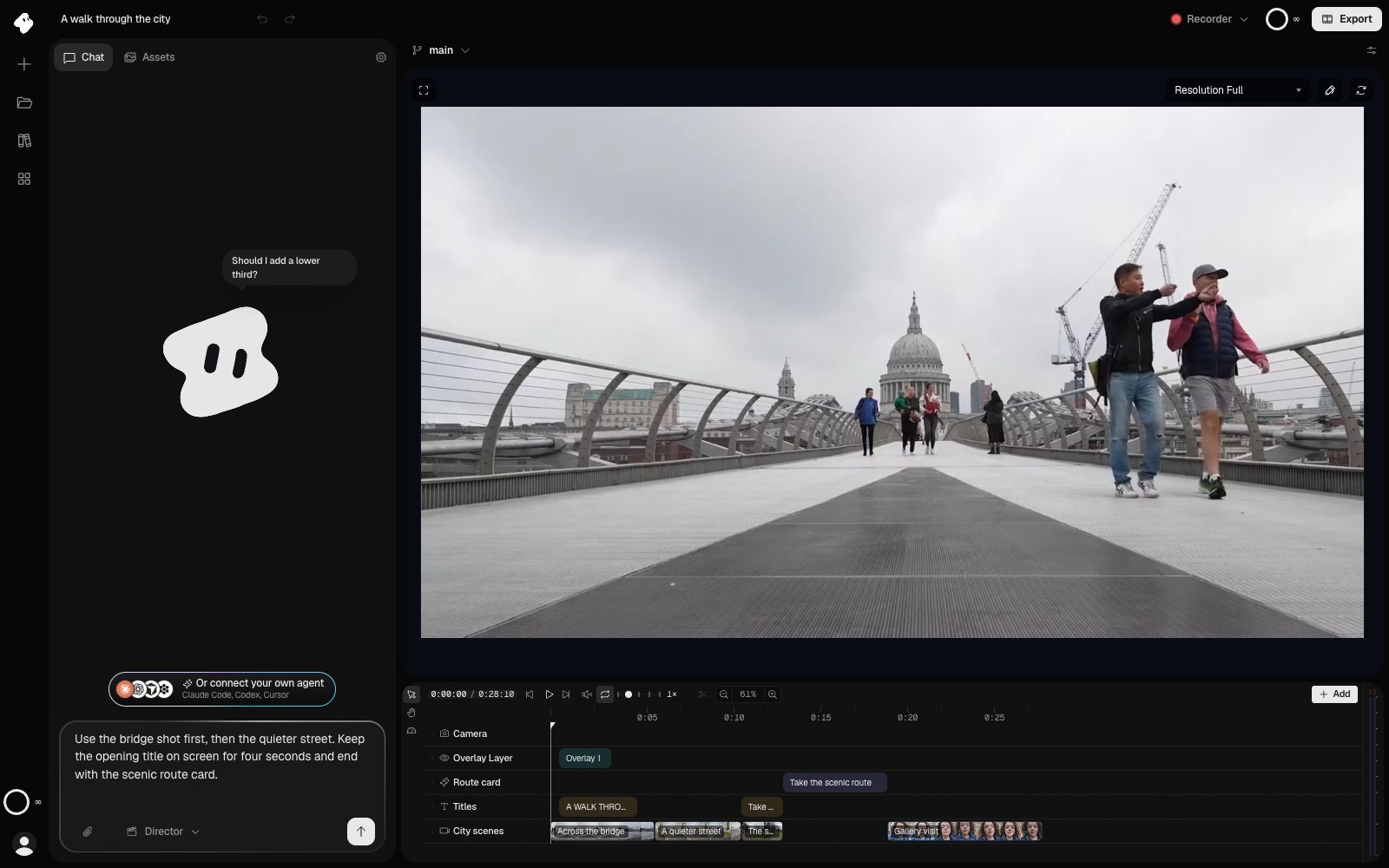
A useful brief names the material, order, and timing. This request is drafted in the composer and has not been sent.
Select the image to open the original full view.
Bring footage, find moments, create what is missing
Upload video, images, and audio to Library, then reuse them in projects. You can import a time range from a longer video, organize uploads, and search by filename. Video Intelligence adds description-based searches across indexed footage.
When you need a new asset, ask chat to generate an image, video, speech, music, or a sound effect. Add animated elements such as titles, counters, and callouts with Add → Element on the timeline. Generated and imported media become material you can arrange and refine in your film.
Uploads, analysis, and generation have progress and completion states. Wait for the operation to finish before using its result in the next step. See Your Library and Generating media.
Keep an editable project and deliver a finished film
Projects sync while connected. Versions let you explore another direction; Undo and chat checkpoints help you revisit earlier edits. A Vidova project package keeps an editable copy with media.
Export an MP4 on your device or in the cloud. Share the result as a download or a watch link, or export a timeline package for Premiere Pro or DaVinci Resolve. The Exporting and sharing guide explains the differences and current export choices.
One account, one credit balance
Free includes starter credits, a starter editing allowance and watermarked output. Paid plans remove the watermark and give you credits each month. Chat, media generation, analysis, video search and cloud rendering all spend from the same credit balance.
See Plans and credits for current prices and credits, Browsers and devices for opening Vidova on your devices, and Storage and access for how project access and media storage work.