 Vidova
Choose the right way to revisit an edit
| You want to… | Use |
|---|---|
| Reverse a recent project change | Undo and Redo |
| Try another opening or pacing without replacing the current version | A new version, made in chat |
| Return the film and conversation to a saved point in chat | Restore checkpoint |
| Keep an editable project and its media as a file | A Vidova project export |
Undo or redo a project change
Use the workspace header’s Undo and Redo controls. The keyboard shortcuts are Cmd/Ctrl + Z for Undo and Cmd/Ctrl + Shift + Z for Redo.
When you are typing in a text field, the shortcut applies to that field. Leave the field to use the project history shortcut.
Create an alternate version
Ask chat to make a version and say what to try in it:
Make a new version called shorter-intro and try a faster opening there. Keep main as it is.
Vidova creates the version from the one you have open and switches to it. The version picker above the preview shows the name of the version you are looking at. Open it and select another version to switch and compare them.
Check the version name before asking chat to make a substantial change. A clear name makes it easier to distinguish a first cut from an experiment.
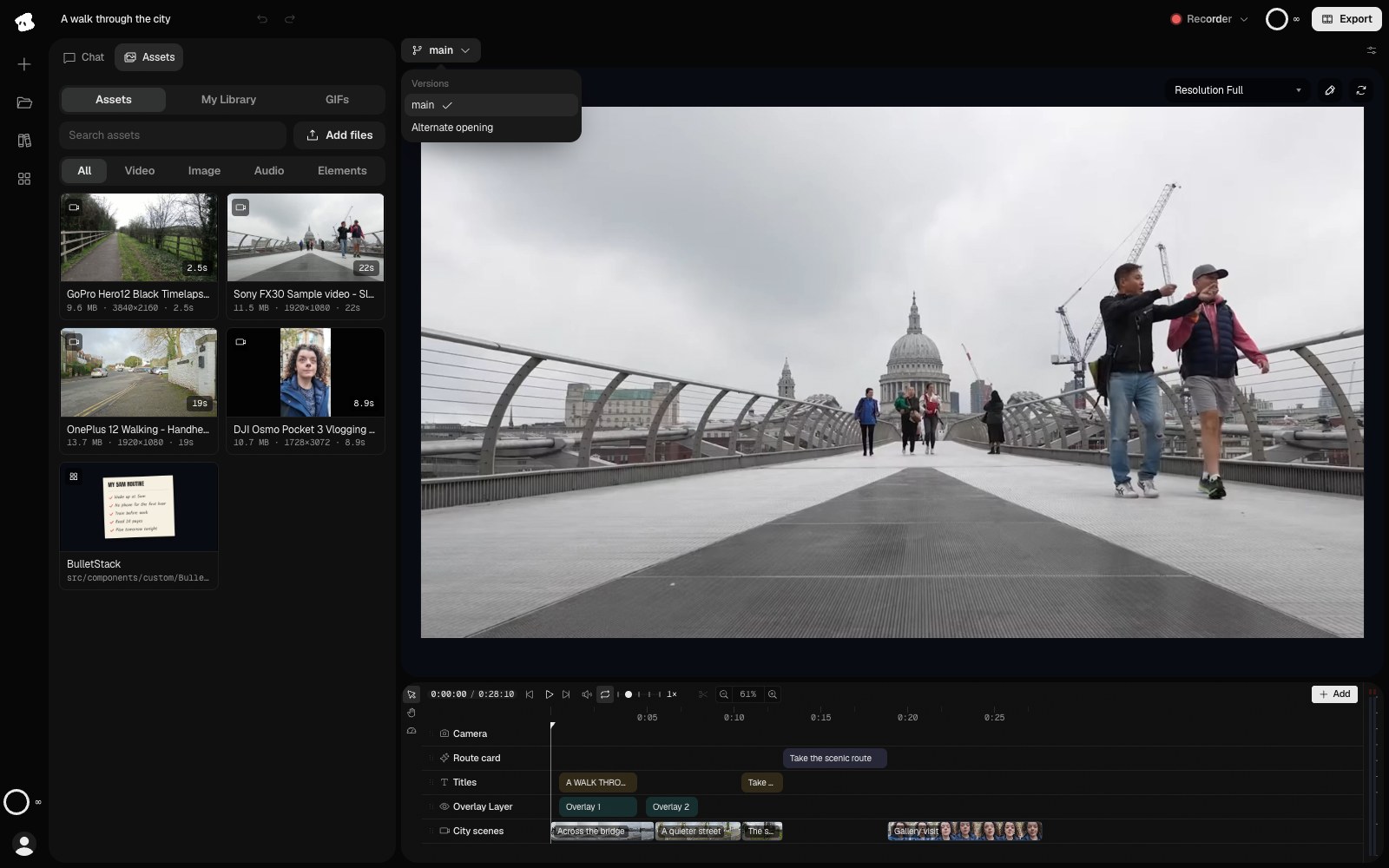
The checkmark marks the open version. Select another version to switch to it.
Select the image to open the original full view.
Bring a version into main
Ask chat to combine the version into main: “Combine shorter-intro into main.” The agent merges that version into main and switches you to main.
Review main after combining, especially if you also edited it while developing the alternate version. Export the version you intend to deliver.
Restore a chat checkpoint
Use Restore checkpoint on a saved point in chat to return the film and components to that point. Later chat messages are removed as part of the restore.
Read the confirmation before restoring. If you want to compare a different direction while keeping the current edit, create a version first. For a downloadable copy with media, see Projects.