 Vidova
Transcribe speech and add captions
Ask chat to transcribe a ready audio or video asset and add captions to the film. Transcription requires the file to be uploaded.
Add captions to the interview. Keep them near the bottom with enough room above the edge, and use a large, high-contrast style.
Transcription produces timed words. Review names, punctuation, and specialized terms before exporting. Ask for captions as well as transcription when you want the words to appear in the video. See Captions and transcripts for correcting text, choosing a style, and cutting footage from the transcript.
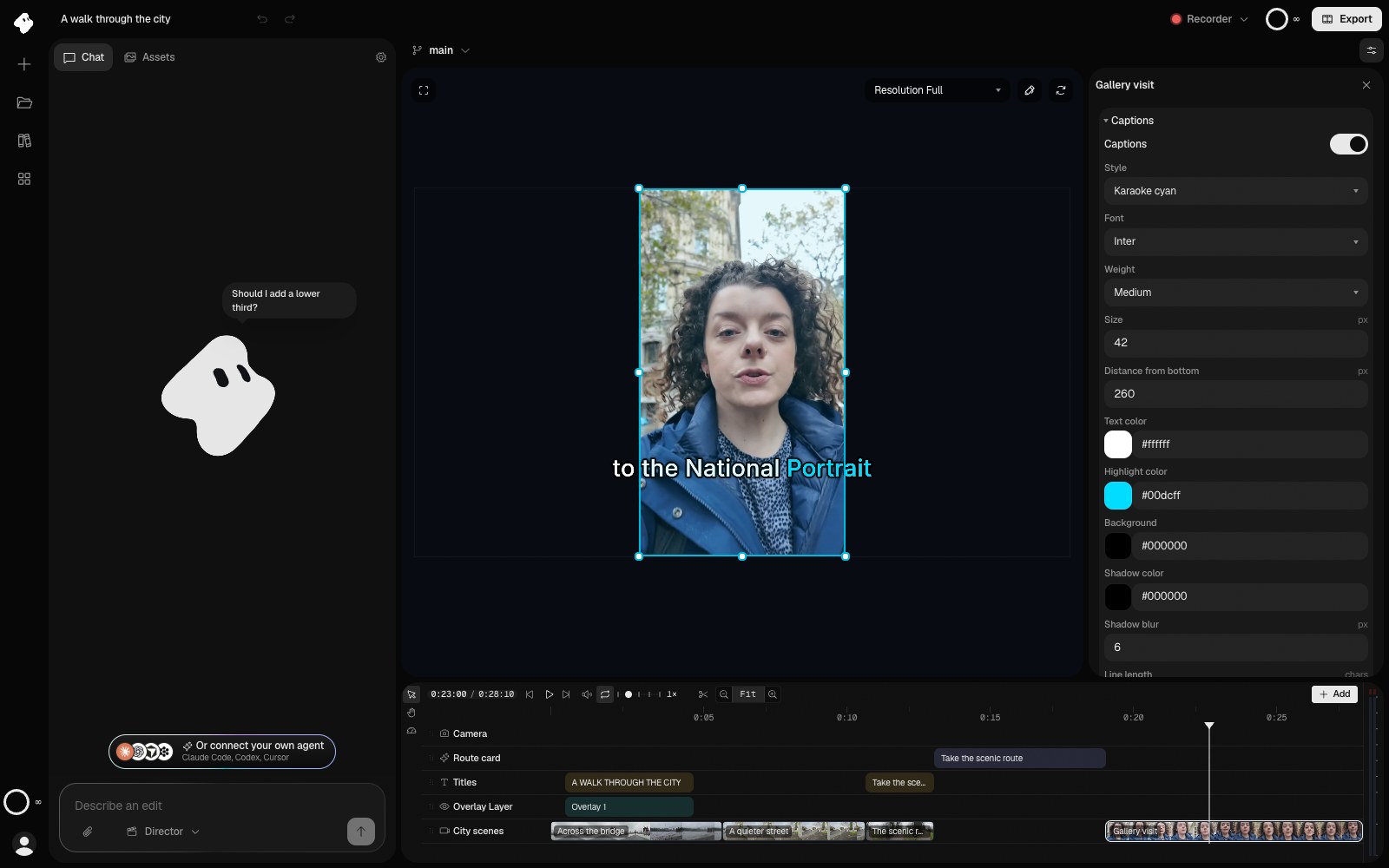
Style the selected recording’s captions, then close the Inspector to check their fit and readability.
Select the image to open the original full view.
Cut to music or existing shots
Beat detection finds beats, bar starts, and musical sections in ready audio or video. Ask the agent to analyze the music before aligning cuts to it.
Scene detection finds shot changes in source video, including hard cuts and gradual transitions. It is useful for footage that already contains an edit. Detection times refer to the source asset, so the agent still needs to apply the chosen cuts to your timeline.
Detect the beats in the music, then cut the montage on the bar starts. Keep the final title visible through the last beat.
Track a subject
Vidova can find objects in a frame and follow an object or faces through a section of the original video. Tell the agent which subject to follow, the range to analyze, and the desired result, such as a label that follows the subject or a reframed shot.
Track the runner from 00:03 to 00:10 in this clip and keep them centered in the vertical frame.
Review the track across the whole range, particularly when the subject leaves the frame or another object crosses in front. Tracking usage is based on the length of the section analyzed.
Cut out a person
Person cutout creates a mask from a ready image or video. Ask chat to apply the cutout to the clip and describe what should appear behind it.
Cut out the person in this shot and place them over a dark blue background. Keep the original audio.
Check the edges around hair and moving hands in the preview. Creating the mask prepares the cutout. Applying it to the clip and adding the background completes the composition.
Refine the result
Use Color and perspective to balance adjacent shots, or Overlays and highlights to add a highlight, scrim, or cover above footage. These guides explain the clip controls and how to review their effect across time.
Completed transcripts, beats, and tracks stay with the project. Ask chat to reuse a saved result when another part of the film needs the same analysis. See Background work.