 Vidova
Start with a transcript
A transcript connects spoken words to their times in the source recording. Vidova uses it both to display captions and to let you edit footage by selecting words.
- Add the audio or video to your project and place it on the timeline.
- Wait for the upload and preparation to finish.
- Ask chat to transcribe that asset and add captions.
- Play the clip while reading the transcript. Check names, numbers, and any technical terms.
If the project has several recordings, mention the asset in chat so the request identifies the right one.
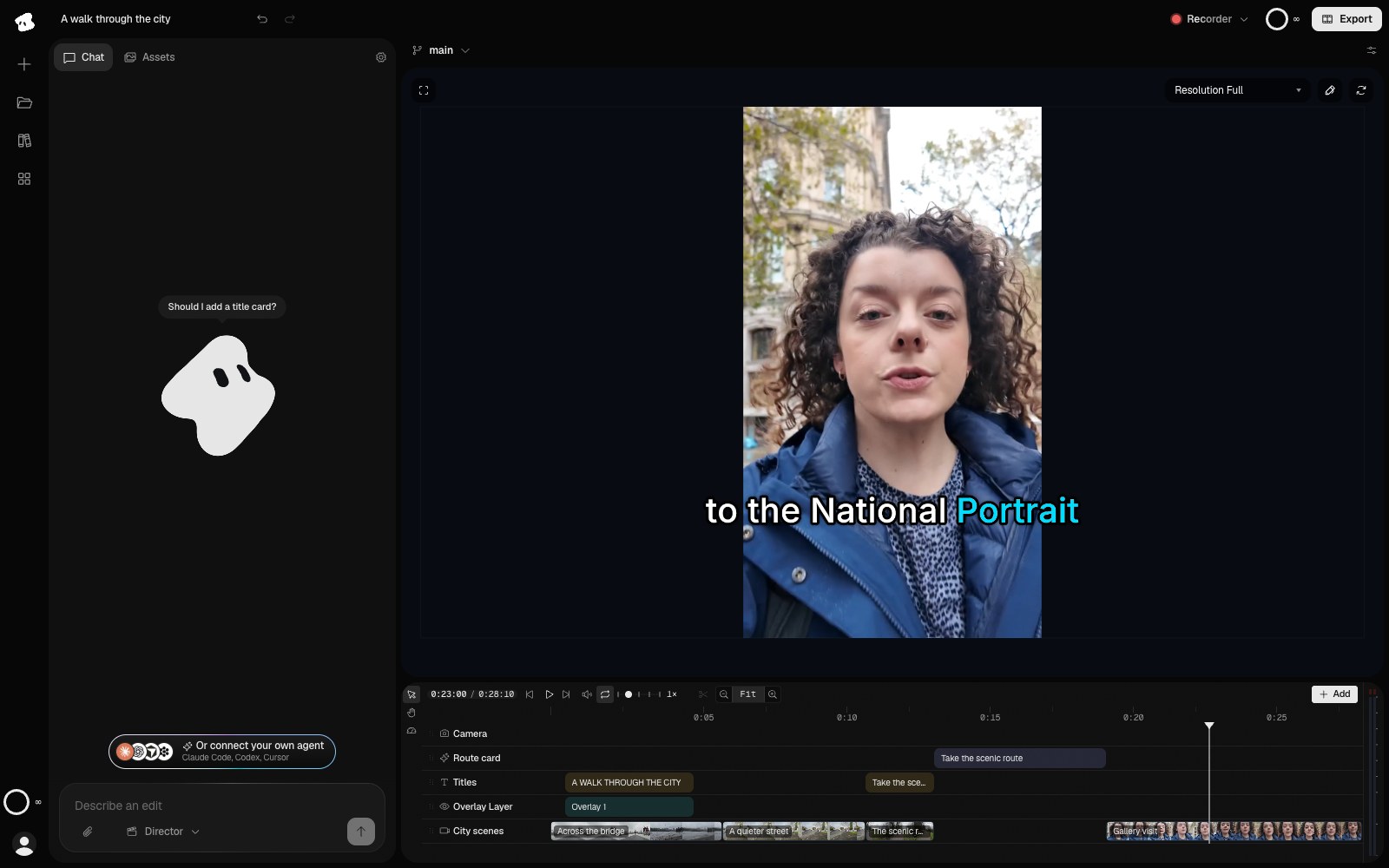
Captions use the completed transcript. Review the wording and timing against the recording before exporting.
Select the image to open the original full view.
Correct a caption without cutting the recording
Tell chat the wrong words and the right ones: “In the captions, change ‘Vidoba’ to ‘Vidova’.” The corrected words keep their start and end times, and the recorded voice does not change.
Keep the correction close to what was spoken so the captions remain easy to follow. Play the sentence afterwards to check the timing.
Cut footage by its words
The transcript gives every word a time, so chat can cut the footage by what is said:
Cut the long pauses and the filler words such as “um” and “uh” from the interview, then close the gaps. Keep the pause before the last answer.
Review the result before exporting. Some pauses and words are part of the delivery you want to keep. Listen to the first and last word around each cut for an abrupt change in sound. Use Undo in the header to reverse a cut.
Style the captions
Select the clip, then open Captions in the Inspector. Turn captions on or off and choose a style, such as Minimal, Outlined, Word highlight, or one of the Karaoke styles.
Adjust the font, weight, size, text color, highlight, background, and shadow. Distance from bottom moves captions away from the lower edge. Line length controls wrapping; 0 lets the selected style decide.
Preview several sentences after changing the style. Check a long line as well as a short one, and keep captions clear of names, titles, and important action.
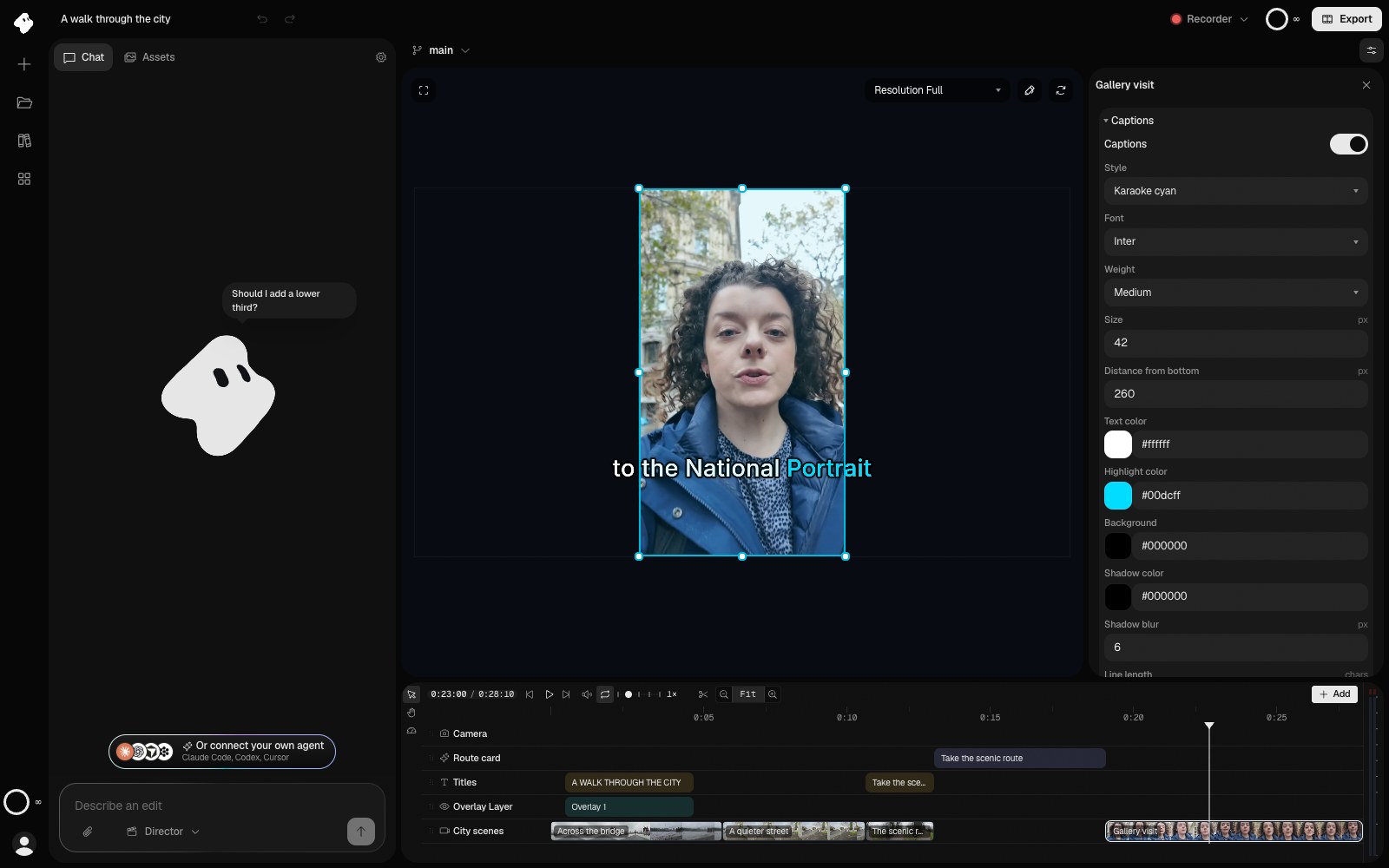
Style the selected recording’s captions, then close the Inspector to check their fit and readability.
Select the image to open the original full view.