 Vidova
Projects and media are different parts of your work
A project describes your film: clips, layers, timing, text, settings, and components. Media files supply the video, audio, and images those clips use. Keeping a project available on another device also requires its media to be available there.
Project changes sync while connected. Library provides an account-wide view of uploaded media, while Assets shows the material used by the open project. See Projects and Your Library.
Local availability and cloud availability
During import, a file may be available on the device before its upload and preparation are complete. Watch the upload tray and keep the tab open while files are uploading. A request to choose a file again means the upload needs access to that local source.
Cloud analysis, cloud rendering, and access from another device need uploaded media. Moving to another device or closing the source tab does not transfer a file that is still waiting to upload.
Storage capacity and media usage
Storage measures media held in your account. It is a size per plan, separate from your credits: analysis and rendering use credits, and freeing storage does not change your credit balance.
Library includes a storage summary and a Trash view. Trashed files can continue to occupy storage until they are permanently removed. Restore a file you still need before deleting it permanently, and check whether a project uses it.
Use your account’s current storage summary and Plans and credits to check capacity before importing a large collection.
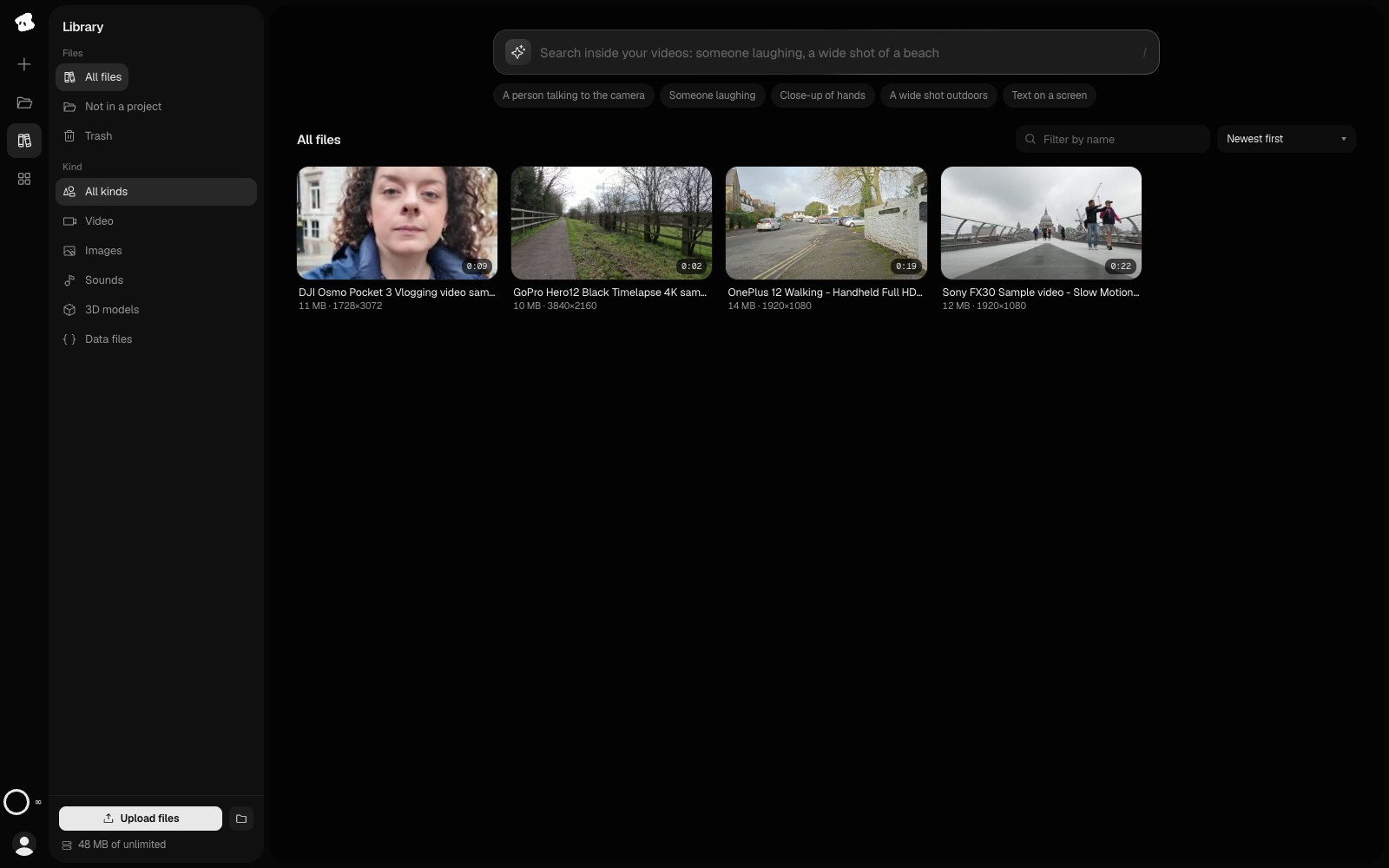
Library holds your uploads for reuse across projects. Describe a moment to search your indexed videos.
Select the image to open the original full view.
Account access and finished-video links
Sign in with the same account to reach your projects on another device. An external agent connects to the account you authorize; verify that account when a project seems to be missing.
A finished-video share link has its own viewing choice: anyone with the link, or only the email addresses you select. Private viewers must sign in with an allowed email. Sharing an exported video does not give the viewer an editable project.
To deliver an editable copy, export a Vidova package with media. See Exporting and sharing and the Privacy policy.
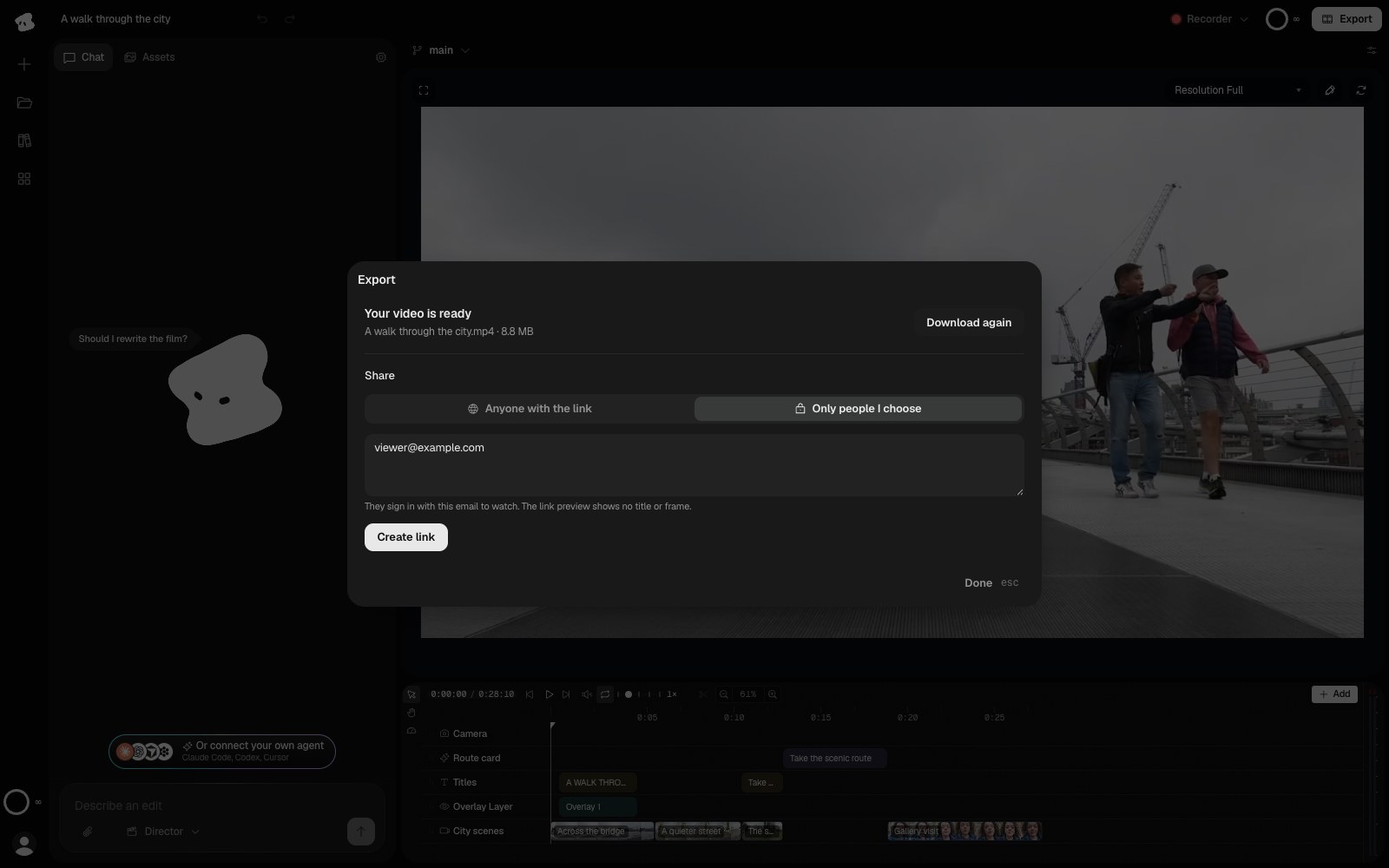
A private link requires the viewer to sign in with an allowed email address. This example shows the form before creating a link.
- Only people I choose limits the link to the addresses you list.
- Enter each address that may watch. They sign in with it to see the video.
Select the image to open the original full view.
Clear local data with care
Settings → Local data includes a control to remove Vidova’s local data from the browser and reload. This affects local projects, files, uploads, chat, and layout data; it does not delete your account.
Finish uploads and synchronization, and save an editable package of work you need to keep, before clearing local data. A cloud copy cannot replace a local file that never finished uploading.
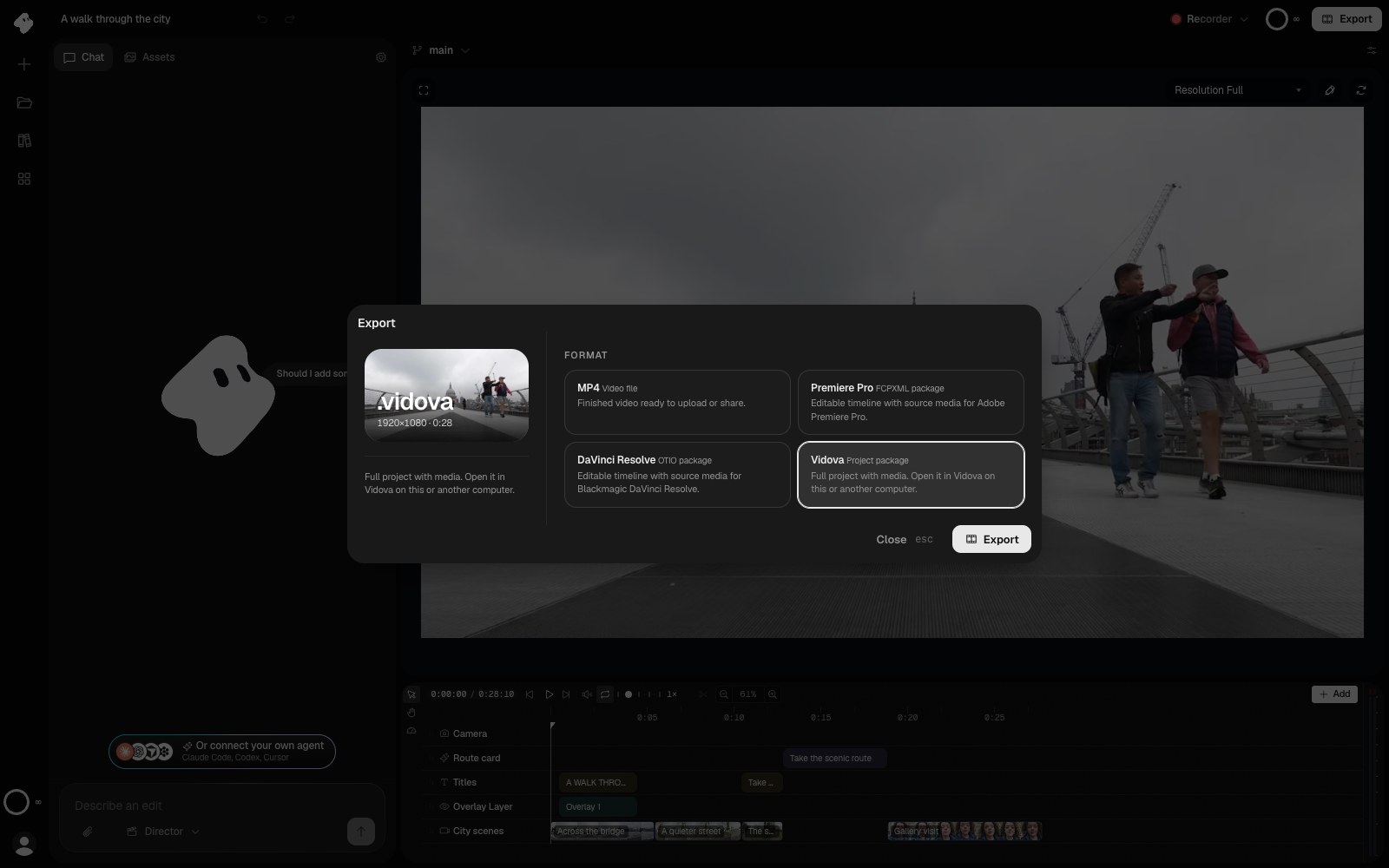
A Vidova package keeps the editable project and its media together. Reopen it with Open .vidova on the Projects page.
Select the image to open the original full view.