 Vidova
Edit with chat and the timeline
Vidova is an AI video editor: upload your clips, describe the video you want, and get a finished edit. Plans start at $19 a month. Vidova brings footage, a timeline, and AI editing into one workspace. Describe the video you want to make, then refine the result in chat or adjust the clips yourself. You can add titles, captions, music, generated media, and animated graphics before exporting.
Chat edits the same project you see in the timeline. You can ask for a first cut, move a clip by hand, and return to chat for the next change. Your connected external agent can work on that project too.
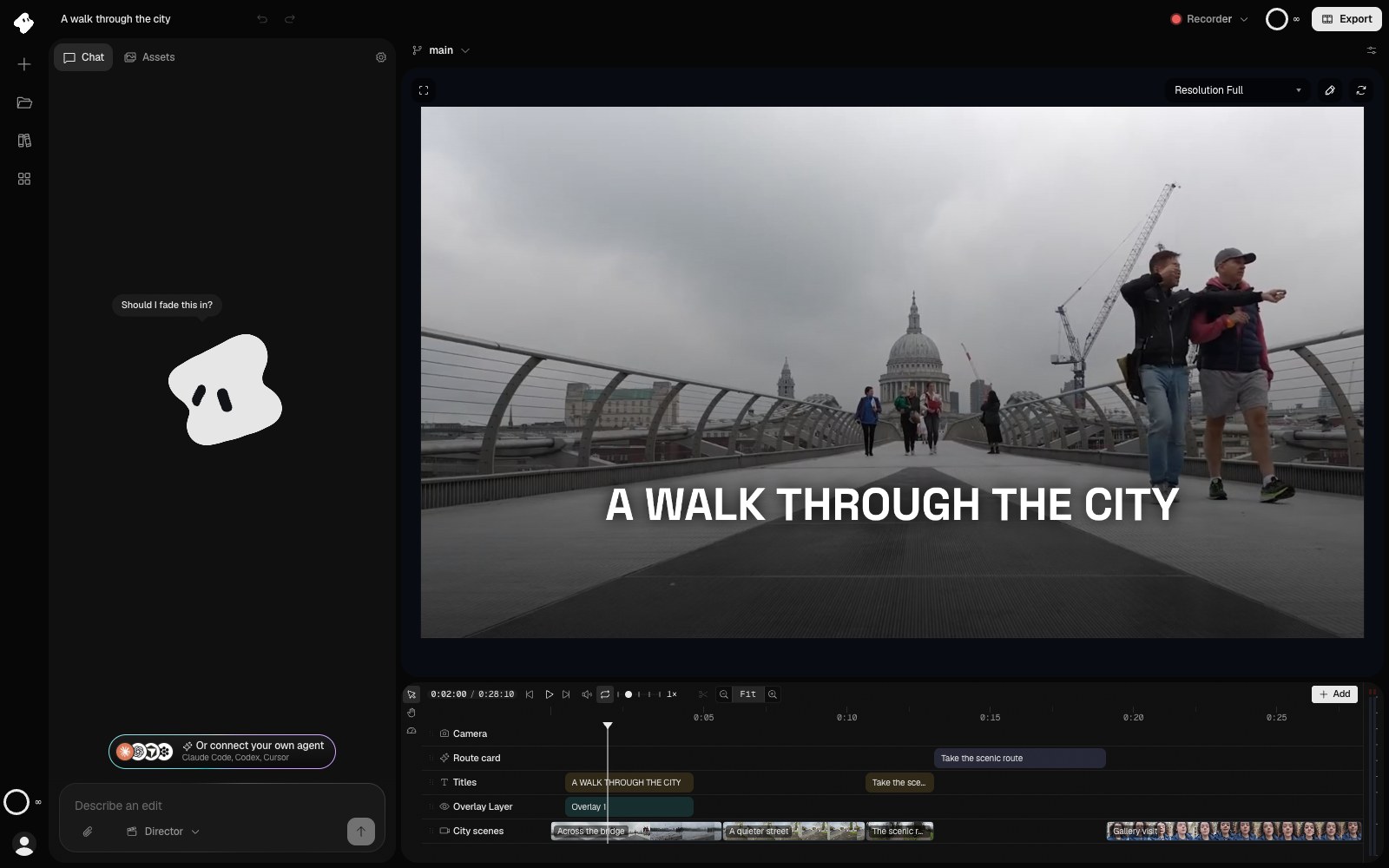
Chat is on the left; the preview and the timeline are on the right. The playhead shows the opening title over the bridge shot.
- Preview: the film at the playhead.
- Timeline: clips on layers. The top row is in front.
- Add puts a new clip at the playhead.
Select the image to open the original full view.
Find your way around
- Preview shows the film at the playhead.
- Timeline holds the layers and clips that make up the film. Its Add menu puts new text, media, elements, overlays, and camera moves at the playhead.
- Inspector changes the selected clip or the project settings.
- Assets contains this project’s media and elements. Its My Library tab lets you reuse your account’s uploads, and GIFs finds animated GIFs.
- Chat is where you describe edits. The agent can also generate images, video, music, speech, and sound effects.
Use Workspace and shortcuts to arrange panels and learn the editing shortcuts. You can also edit from ChatGPT with the Vidova plugin, or connect another external agent through the MCP server.
Assets, clips, and layers
An asset is a file available to the project, such as a video, image, or sound. A clip is an instance of that material on the timeline, with its own start, trim, and settings. You can use the same asset in several clips.
A layer groups clips on the timeline. Layers let a title, a video shot, and music play at the same time. The playhead marks the frame currently shown in Preview.
Source time refers to a position in the original recording. Timeline time refers to a position in the edited film. This distinction matters when you ask chat to use a section of a longer video.
Make your first video
Follow the Quickstart to import footage, make an edit, and export it. Every plan starts with a 7-day free trial with no watermark. It gives 3 to 6 messages to the agent, by plan: half at the start and the rest after your first export. See Plans and credits for how credits and watermarks work.