 Vidova
Check the edit before exporting
Play the film from beginning to end. Check the opening frame, the last frame, caption spelling, text that approaches the edges, and the balance between speech and music. Confirm that the correct project version is open.
Finish uploading any media needed by cloud features. If you changed the canvas from landscape to portrait, review the framing of every shot before rendering.
Export a finished video
- Open Export and select MP4.
- Under Render on, choose Cloud or This device.
- Review the dimensions, frame rate, and other available settings.
- Choose Export.
The window remembers your choice for the next export. Free-plan exports include a Vidova watermark and end with a short Vidova end card. A paid plan, or a Project Pass for one project, removes both.
Cloud or this device
| Cloud | This device | |
|---|---|---|
| Cost | Free | Free |
| Leaving the page | Keeps rendering after you close the tab | Keep the tab open until it finishes |
| Settings | H.264 at 24, 25, or 30 fps; 720p, or 1080p on a paid plan or with a Project Pass | Up to 4K and 60 fps, H.264 or H.265, five quality steps |
| Needs | Uploaded media | A browser that can encode the chosen settings |
If this browser cannot make the video with the chosen settings, the export stops and says so. Choose H.264 or a lower resolution, or use Cloud. On a phone, exports always render in the cloud.
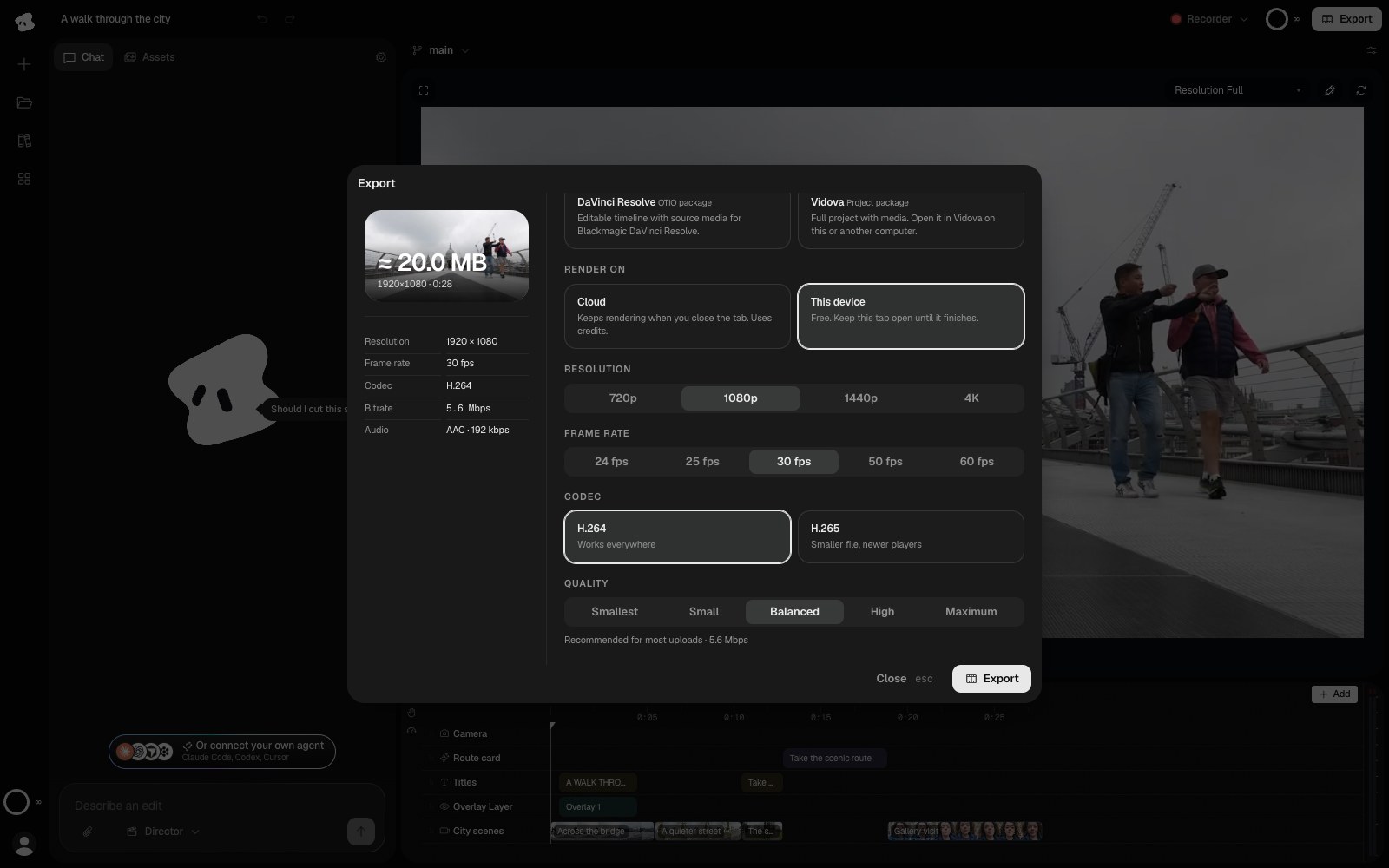
Cloud keeps rendering after you close the tab and uses credits. This device is free and needs the tab open until it finishes.
- Cloud keeps rendering after you close the tab and uses credits.
- This device is free. Keep the tab open until it finishes.
Select the image to open the original full view.
Choose dimensions and quality
Read the exact width and height in the export summary, especially for portrait or square projects. Changing export resolution preserves the project’s shape; change the project canvas when you need a different aspect ratio.
On this device, H.264 is the broad compatibility choice. H.265 can produce a smaller file, but the receiving player must support it. Raising quality usually increases file size. Exporting at a larger size does not add detail to low-resolution source footage.
Use a frame rate that suits the project and the place you will publish. Watch the downloaded file once to confirm the result outside the editor.
Follow a cloud export
After you start a cloud export, the Export window shows its progress. You can close the window or the tab while it renders. With a chat open, the export also appears there, and you can download it from chat when it is ready. Choose Stop export in the Export window to cancel it.
A connected MCP client can list your cloud exports and get their download links too. Check the progress of an export before you start another export of the same edit.
Share the finished video
After an MP4 export on this device, the Your video is ready screen offers Download again and link sharing.
- Choose Anyone with the link or Only people I choose.
- For a private link, enter the allowed email addresses. Viewers must sign in with a listed email.
- Choose Create link and wait for the upload to finish.
- Choose Copy link and send it to your viewers.
A public link can be watched by anyone who has it; its preview shows the video’s title and a frame. A private link’s preview hides those details. You can list up to 50 email addresses for a private link.
Link sharing accepts videos up to 100 MB. If the file is larger, export at a lower resolution or quality, or download the video to share through your own service.
A share link plays the exported video. Later timeline edits require a new export and a new link.
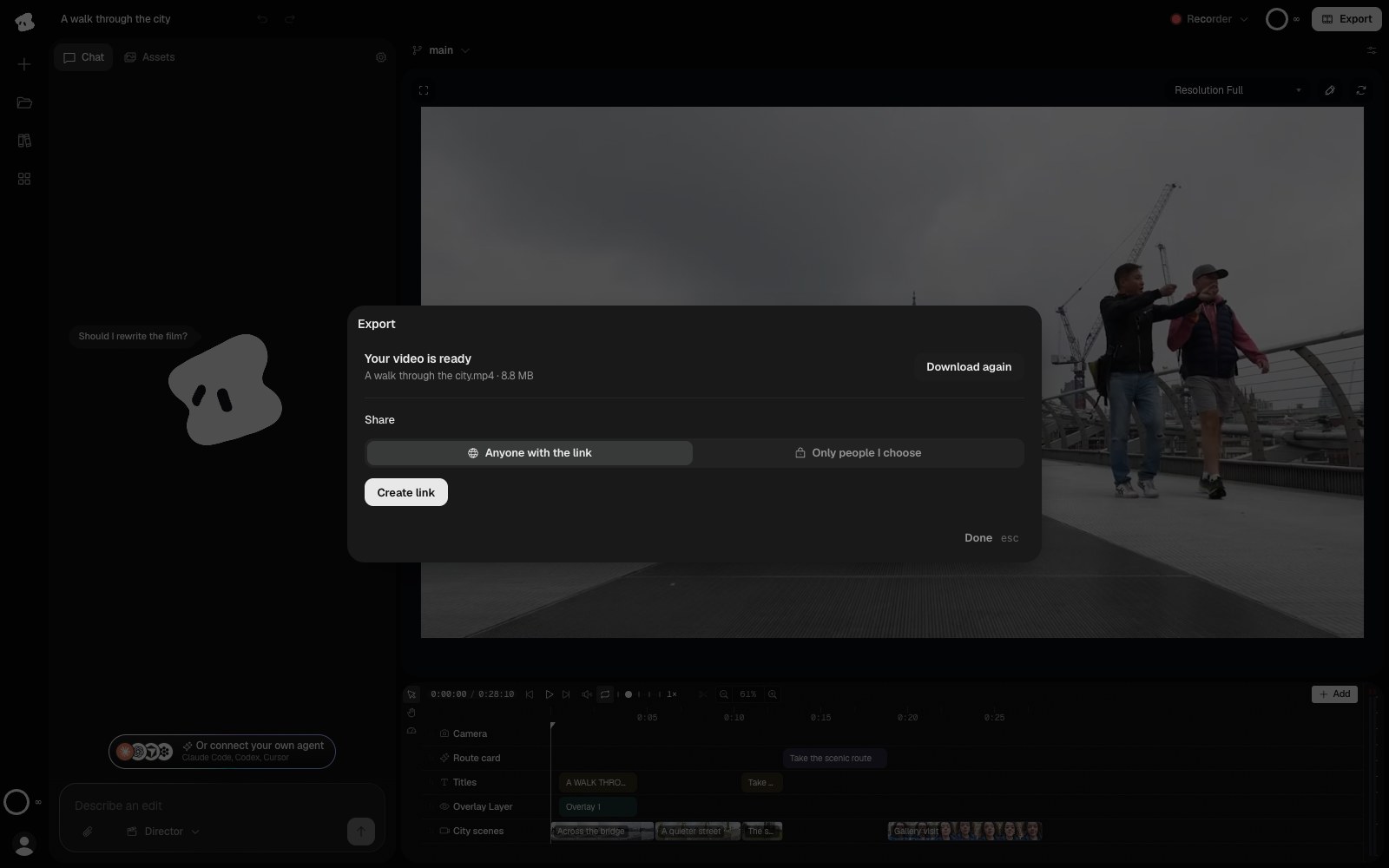
An MP4 made on this device is ready to download. Link sharing is a separate step after rendering.
- Download again saves another copy of the finished MP4.
- Share creates a viewing link with its own access setting.
Select the image to open the original full view.
Deliver an editable project
Choose Vidova to package the editable project with its media. The recipient can reopen it with Open .vidova.
Choose Premiere Pro for an FCPXML package or DaVinci Resolve for an OTIO package. Both include source media and offer an Include captions option. Open the package in the destination editor and check the timeline before continuing.
For an overview of project files and saving, see Projects.
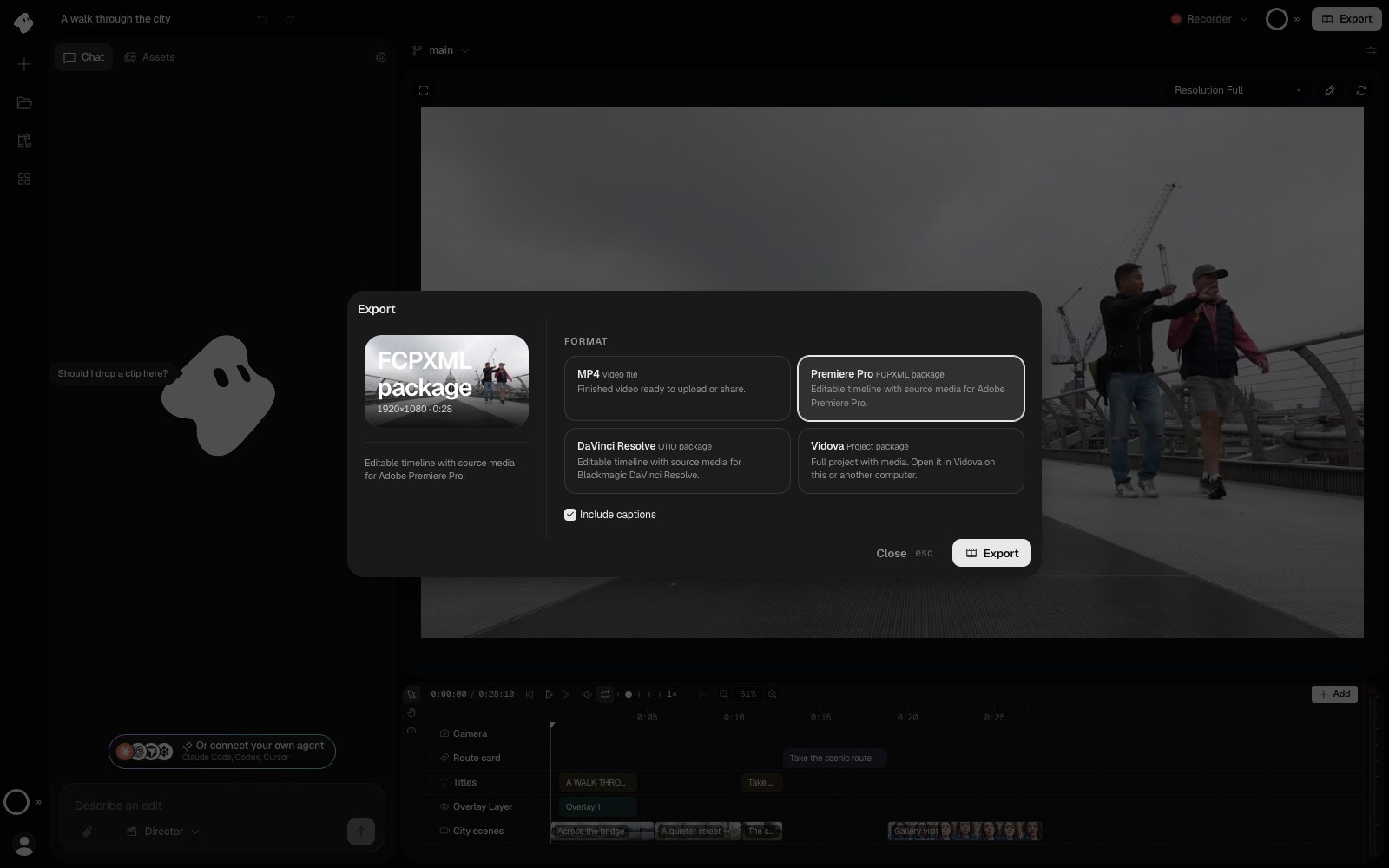
Choose an editable package when the recipient needs to continue editing. Premiere Pro and DaVinci Resolve packages include source media and an optional caption track.
Select the image to open the original full view.