 Vidova
Tell Vidova what to change
Tell chat what the finished video should do. Include the footage to use, target length, portrait or landscape format, exact title text, and any sound you want to keep. Chat can inspect your project, edit clips, create media, and check previews as it works.
Use the interview clip from 00:12 to 00:28. Make a vertical film, add readable captions, and keep the speaker’s original voice. End with “See you next week”.
For revisions, name the part you mean and the change you want. “Make the opening title larger” is easier to review than “make everything better”.
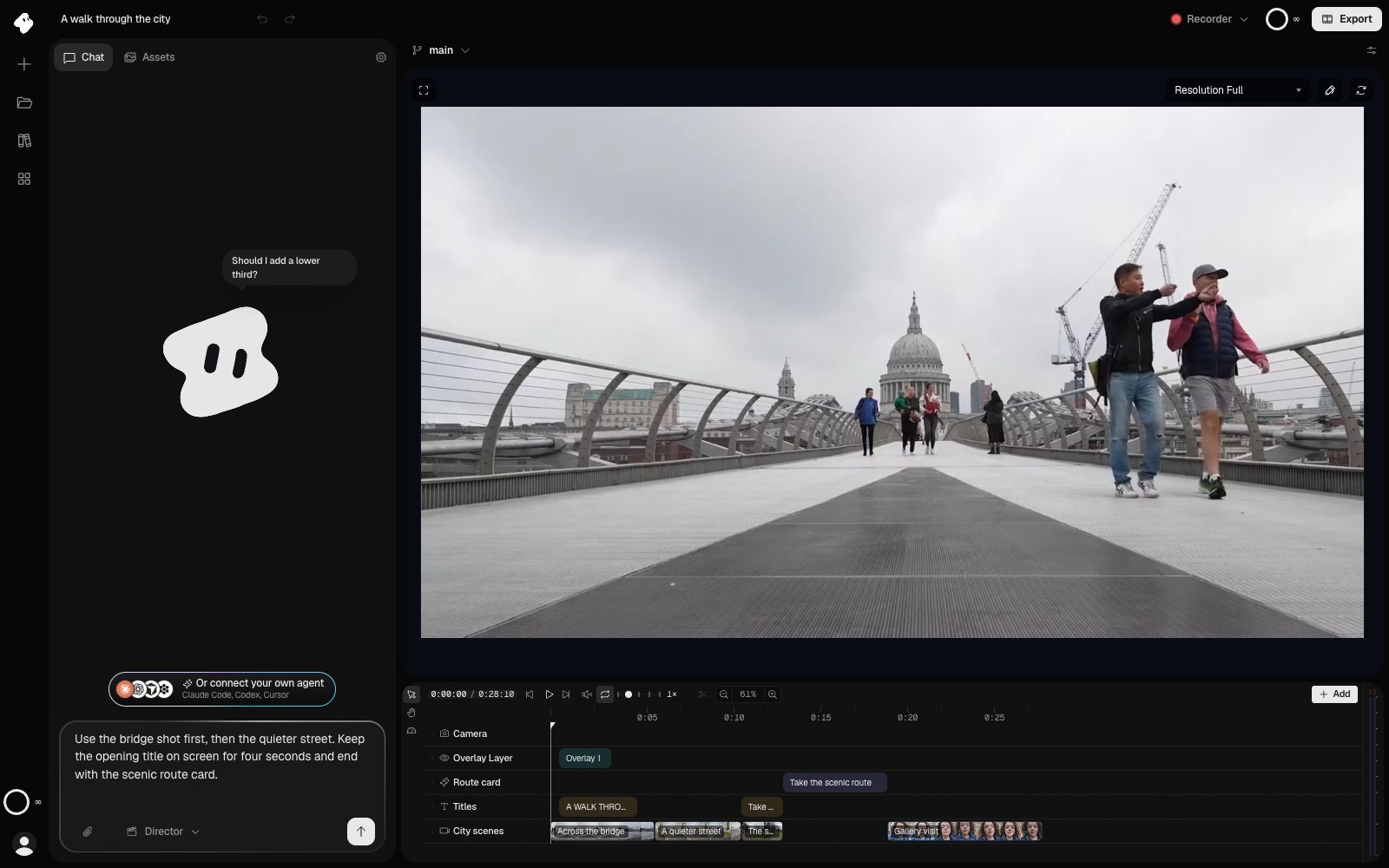
A useful brief names the material, order, and timing. This request is drafted in the composer and has not been sent.
Select the image to open the original full view.
Reference the right material
Attach new files in the composer. Type @ to select an existing asset or component from the mention menu. Selecting a mention tells Vidova exactly which item you mean, even when several uploads have similar names.
Distinguish source time from timeline time: “Use 00:10–00:15 of the interview and place it at 00:03 in the film.”
Review changes and checkpoints
Watch the timeline and preview as the agent works. Review the finished edit before exporting, including caption wording, cut timing, and audio levels.
Chat provides Restore checkpoint actions at saved points. Restoring returns the film and components to that point and removes later chat messages. Read the confirmation before restoring. For a recent project change, use Undo and Redo. See Versions and undo to choose between undoing, restoring, and trying another version.
Generation and longer tasks
Media generation and analysis can take longer than a text reply. Chat shows the progress of each one until it finishes, so check there before you start the same work again. Each chat message uses 1 credit, and generations use extra credits. You can check your balance on the Billing page.
See Background work for progress and saved results, or Generating media for what to ask for. To connect your own agent, use the MCP server guide.