 Vidova
1. Start a project
Open Vidova and sign in. On the home screen, describe your video in the prompt box. Use Attach or drop video, images, or audio onto the prompt, then choose Start.
For a manual edit, choose Blank project. To reopen a project package, choose Open .vidova.
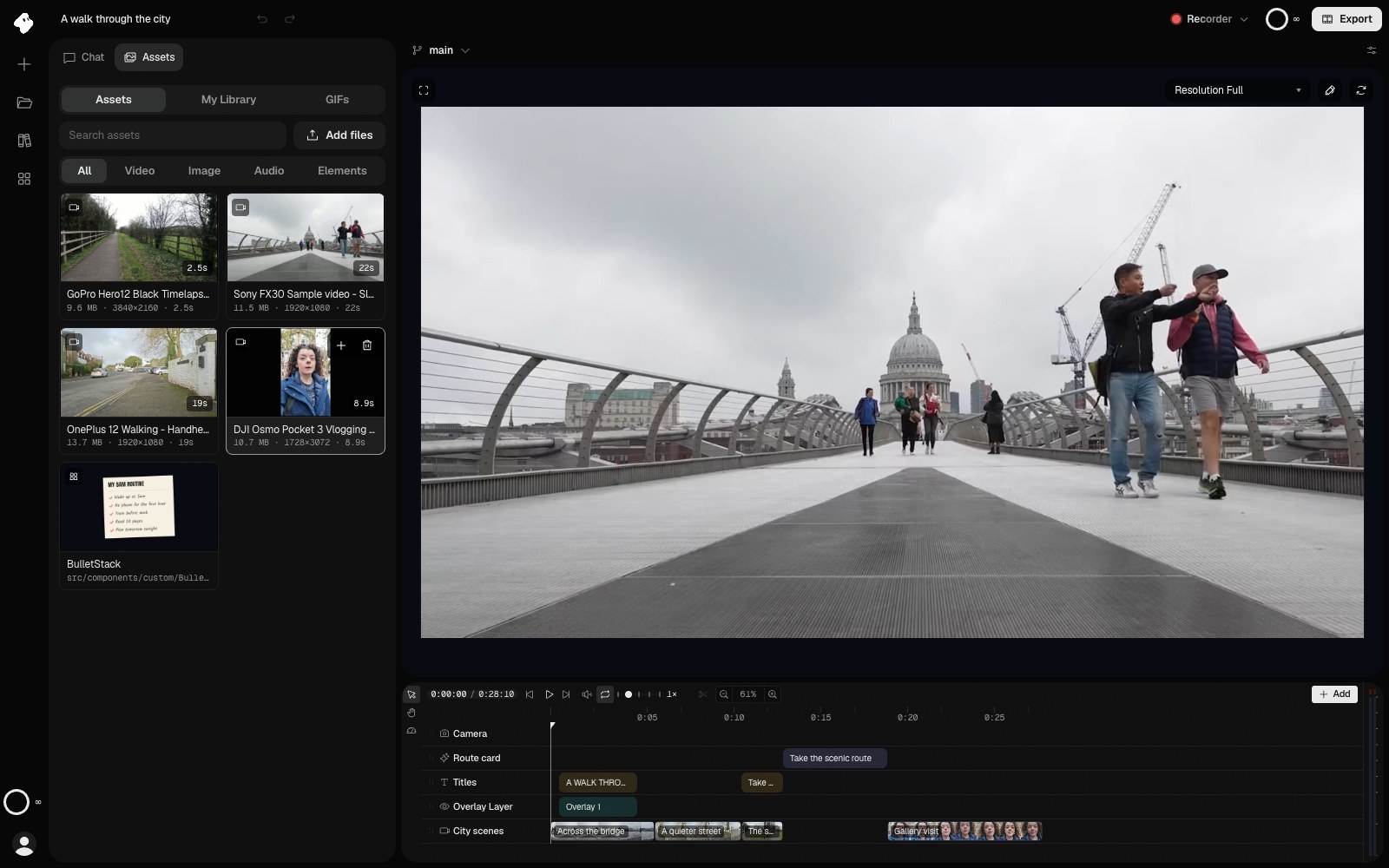
Assets holds the footage and elements in this project. Point at a card and choose + to put it on the timeline at the playhead.
- Add puts a clip of this asset at the playhead.
Select the image to open the original full view.
2. Describe the edit you want
Say how long the video should be, whether it is portrait or landscape, which footage to use, and what the titles should say. For example:
Make a 20-second vertical film from the attached footage. Open with “A weekend outside”, use short cuts, and end with a two-second title card. Keep the original audio.
Wait for the media to finish uploading and preparing before asking for transcription, tracking, or other analysis. Use @ in chat to refer to an asset already in the project.
3. Review and refine
Play the preview with Space. Use the left and right arrow keys to step one frame at a time. Click a clip to change its settings in the Inspector, or ask chat for a specific revision.
Keep the first shot two seconds longer, shorten the ending title to one second, and make the title text larger.
To add something yourself, choose Add on the timeline: text, media from the project, an element, or an overlay goes in at the playhead. Use the project’s Undo and Redo controls to step back or reapply a change. The Timeline guide covers adding, trimming, splitting, and deleting clips.
4. Export the result
Open Export and choose MP4. Under Render on, choose This device for a free export in this tab, or Cloud to keep rendering after you close the tab. Both are free. Review the resolution and frame rate, then select Export.
Keep the page open during an export on this device. Free-plan exports include a Vidova watermark.
To keep an editable copy with media, export the Vidova project package instead. See Exporting and sharing for export settings and sharing options.