 Vidova
Add a title to the timeline
A text clip can be a headline, a speaker label, a title card, or a short note over footage. To add one yourself, move the playhead to where it should start and choose Add → Text on the timeline, or press T. Type over “Your text” in the Inspector. You can also tell chat the exact words, when they should appear, and how long they should stay.
Add a title that says “A quieter morning” at the start. Keep it centered over the footage for three seconds, then fade it out.
Select the resulting text clip to refine it in the Inspector. Use Content for the wording and typography, Placement for its position and scale, and Timing for its start and duration.
Move the playhead inside the title’s time range to review it, then close the Inspector when judging the full composition. A selected title can be outside the frame currently shown by the playhead.
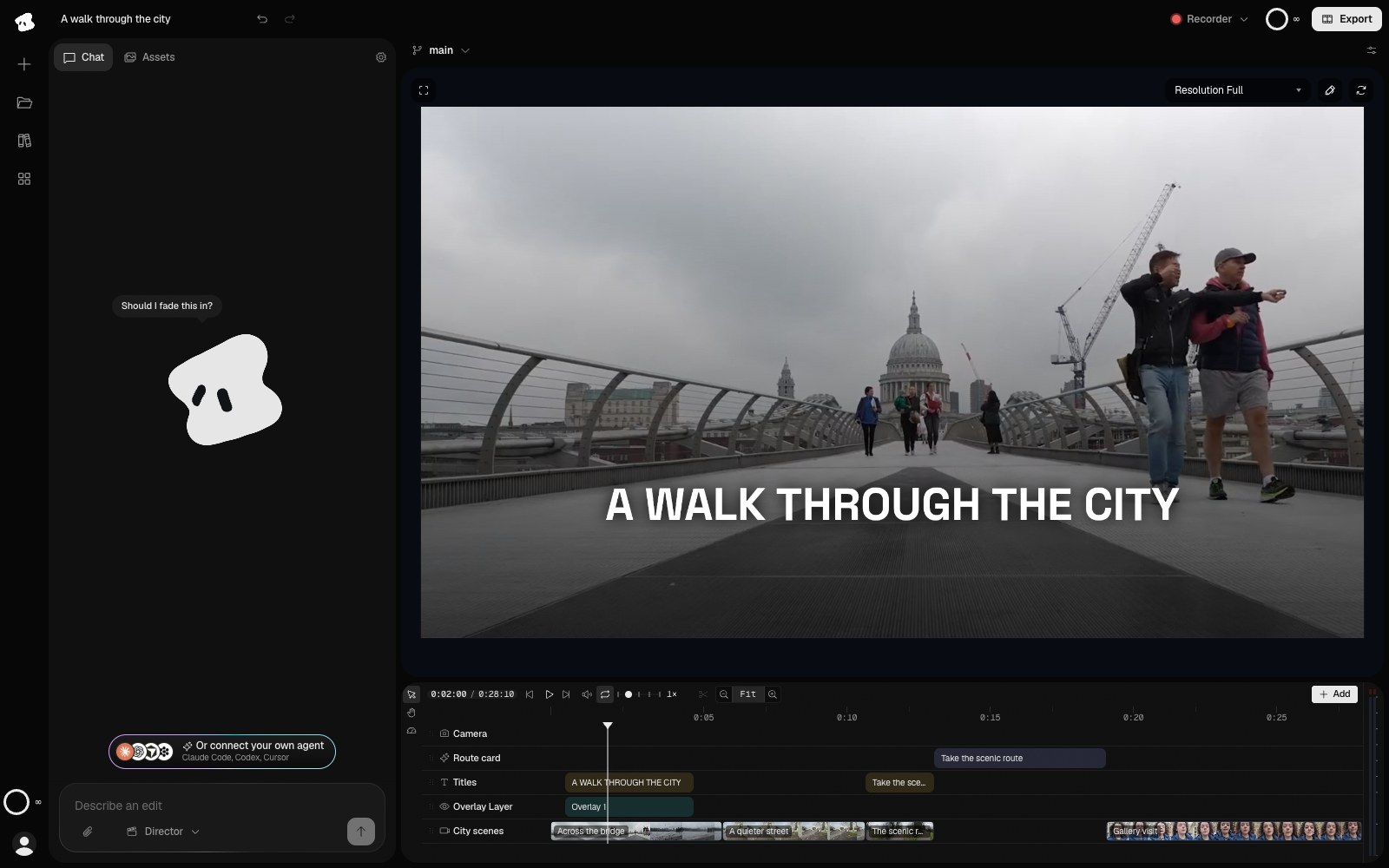
The playhead is at 2 seconds, inside the opening title's clip, so the preview shows the title and its placement.
- The opening title is visible in this frame.
- The title clip; the playhead is inside it.
Select the image to open the original full view.
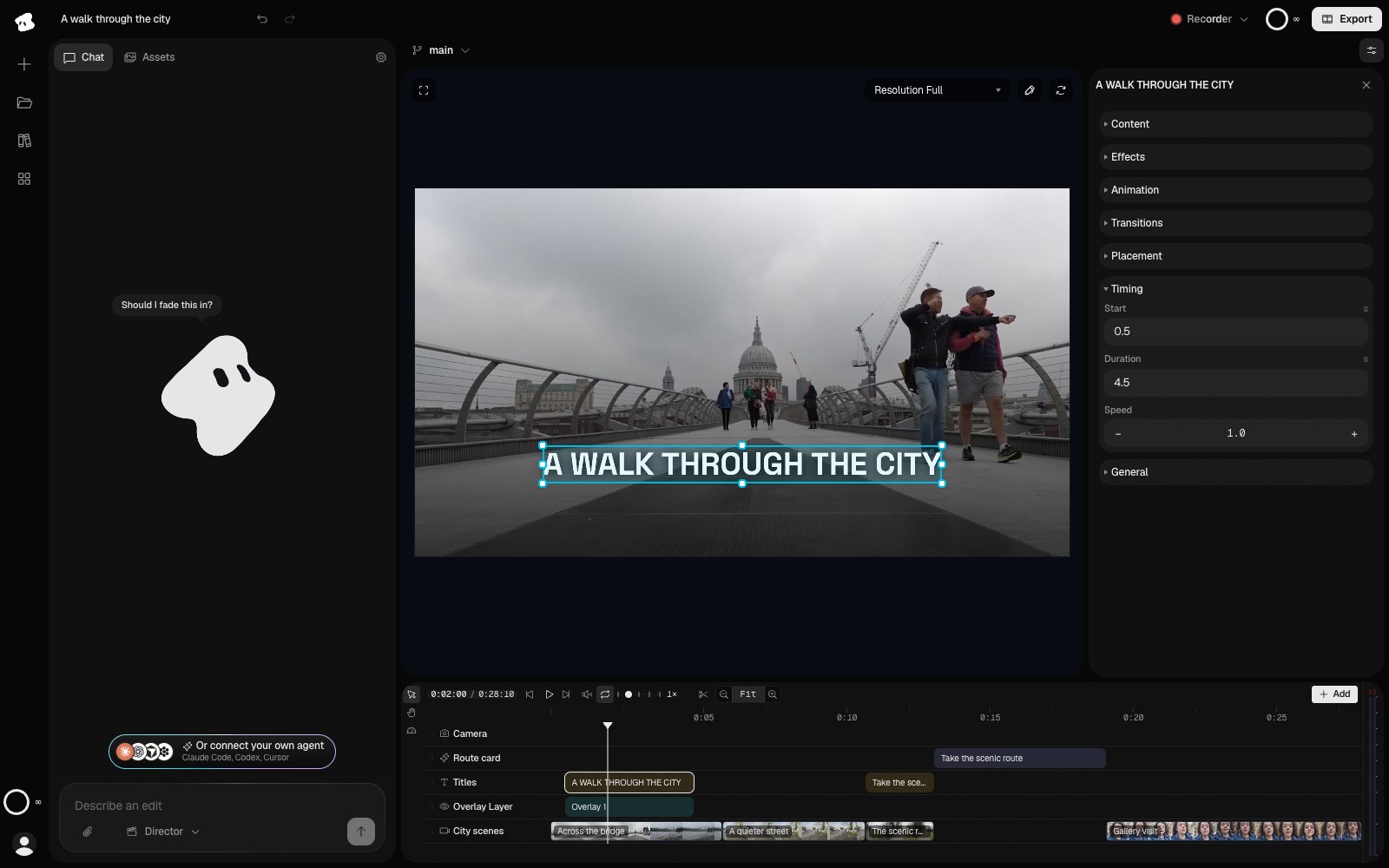
The opening title starts at 0.5 seconds and lasts 4.5 seconds. Its timeline clip spans that same interval.
Select the image to open the original full view.
Choose a text layout
The Template selector offers Plain text, Title card, Lower third, and Caption pill. A lower third is useful for a speaker’s name and role; a title card gives a headline its own layout.
Templates that support a subtitle show a separate Subtitle field. Keep the main text and supporting line separate so you can revise them without recreating the clip.
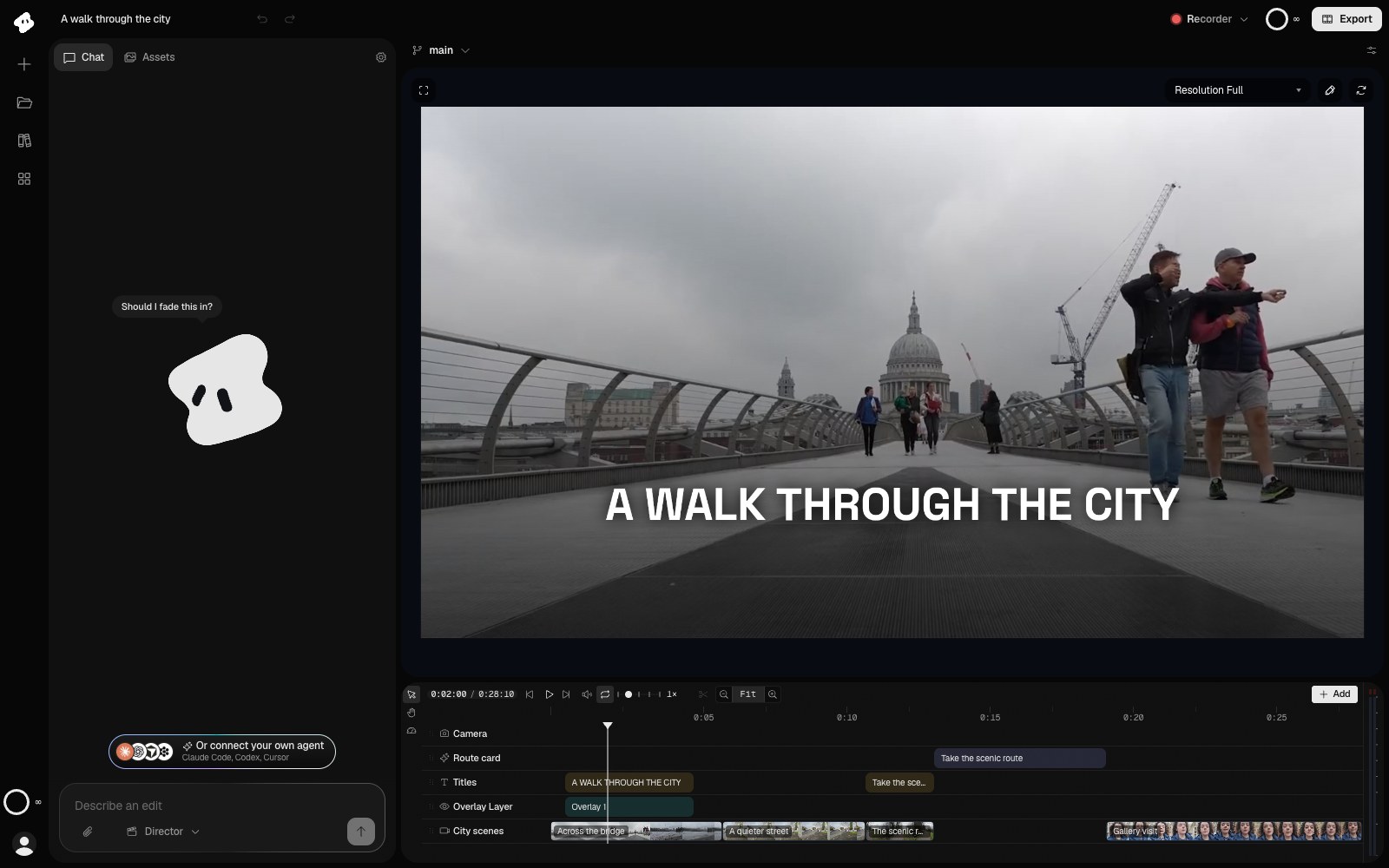
The scrim adds contrast behind the title while leaving the top of the picture clear. The title sits above the overlay.
Select the image to open the original full view.
Make the text easy to read
In Content, choose a font and weight, then adjust alignment, letter spacing, and line height. Text box width and Wrap text control how a long line breaks. A line height of 0 uses the font’s natural spacing.
Use Text treatment for styles such as Hollow outline, Neon glow, Sticker edge, and Long shadow. Check the text against both the brightest and darkest frames behind it.
Review titles at the size your audience will watch. Leave space around the edges, and give a long sentence more time on screen than a short headline.
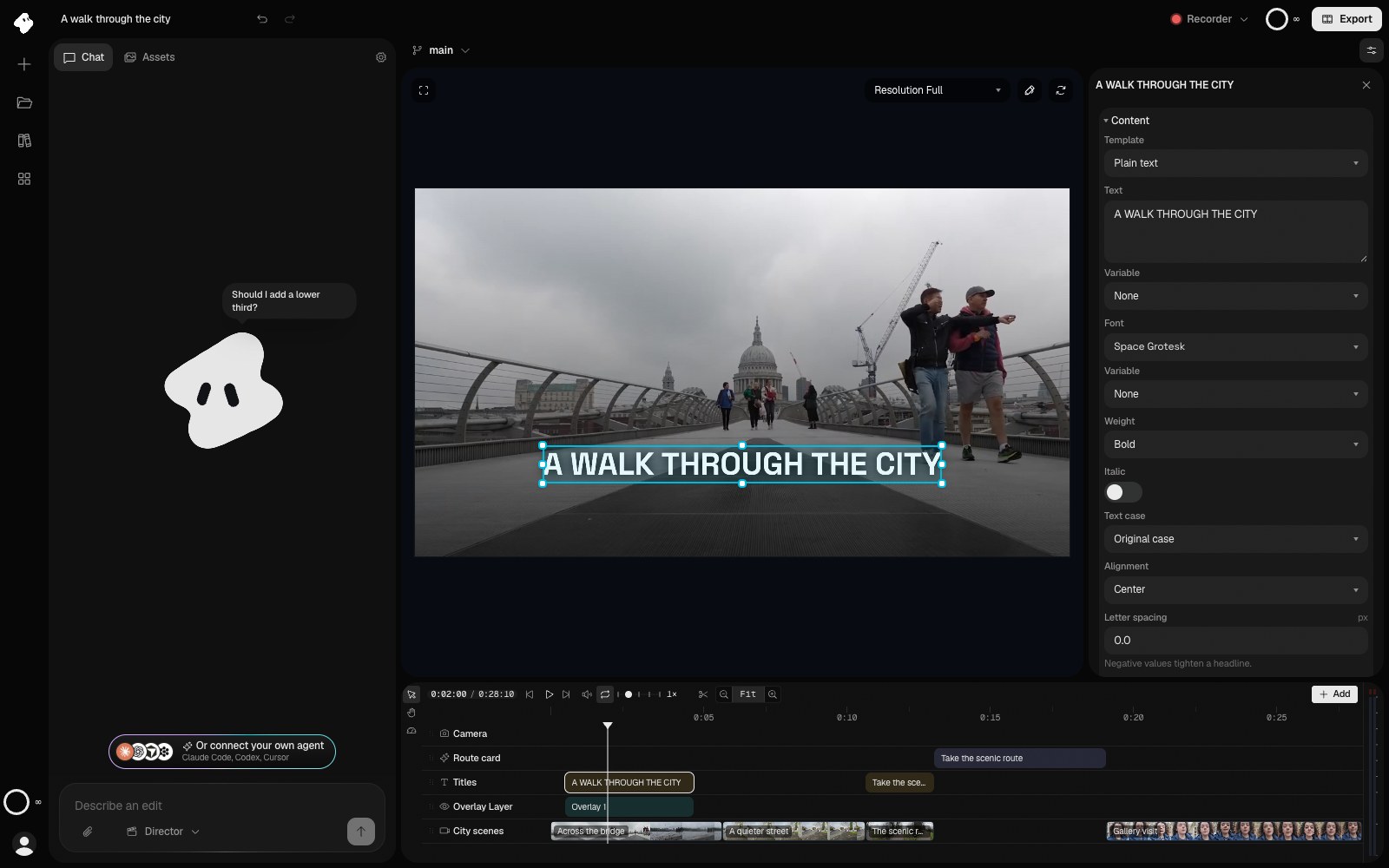
Content holds the title’s wording and typography. Edit the words, choose a font and weight, then review the title in the preview.
Select the image to open the original full view.
Animate the lettering
Glyph motion animates the letters or words within the text. Options include Typewriter, Letter fade, Staggered rise, and Word pop. Reveal duration sets how long that reveal takes.
A clip transition controls how the whole title enters or leaves. You can combine a letter reveal with a clip fade, but leave enough time to read the completed title. See Animation and transitions.
For words that follow recorded speech, use Captions and transcripts.
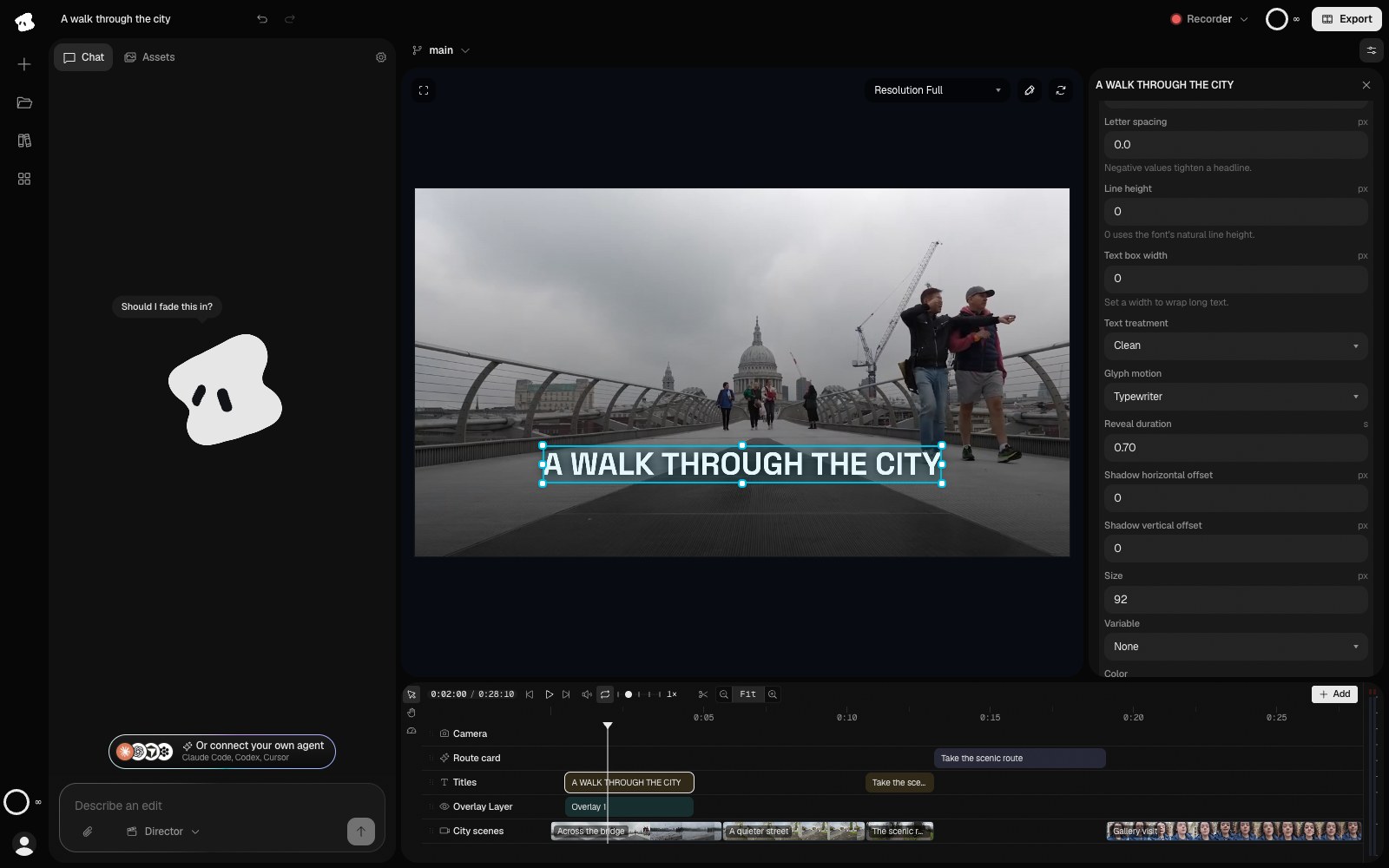
Glyph motion reveals the letters or words inside the text clip. It is separate from moving the entire clip with Animation or Transitions.
Select the image to open the original full view.