 Vidova
Build and refine your film
| Feature | What you can do | Guide |
|---|---|---|
| AI editing | Describe a first cut or a revision, reference project assets, and review the changes. | Editing with chat |
| Timeline editing | Add text, media, elements, and overlays yourself; arrange layers; trim, split, duplicate, copy, and paste clips; watch the audio levels. | Timeline |
| Text and titles | Set the wording, font, size, color, alignment, and placement of on-screen text. | Text and titles |
| Captions and transcripts | Transcribe speech, style captions, correct words, and cut footage by its words. | Captions and transcripts |
| Animation | Keyframe clip properties and choose entrance, exit, and transition treatments. | Animation and transitions |
| Reusable graphics | Customize animated elements and link compatible controls to project variables. | Elements and components |
| Versions | Explore alternate edits, combine a version into main, and restore saved chat checkpoints. | Versions and undo |
Work with speech, music, and sound effects
Keep original sound, add separate audio clips, and adjust the mix while the level meter shows how loud it is. You can generate music, sound effects, or a voiceover from text. Beat detection can help you time visual cuts to a track.
Listen to speech and music together at normal playback speed. A clear voiceover can become hard to understand after a music bed is added. See Audio and music and Generating media.
Analyze and find footage
- Transcription turns spoken audio into timed text.
- Shot detection identifies changes between shots in a source video.
- Beat detection finds timing points in audio.
- Object detection and tracking find a subject and follow it through a selected range.
- Cutout separates a subject from its background for a composition.
- Video Intelligence indexes footage, finds moments from descriptions, and answers questions about a video.
Choose the operation that matches the job. Indexing for search and analyzing a selected range are separate operations, and each uses credits. Analyzing a range requires a paid plan. See Analysis and effects and Your Library.
Generate assets and customize recordings
Ask chat for images, video, music, speech, or sound effects. Describe the result and where it belongs; chat shows the progress, and the finished media appears in Assets and on the timeline. See Generating media for what to include in a request.
For editable Vidova recordings, the Inspector includes screen framing, zoom, cursor, camera, appearance, and keyboard controls. A regular video file retains the picture and sound already recorded into it. See Screen recordings.
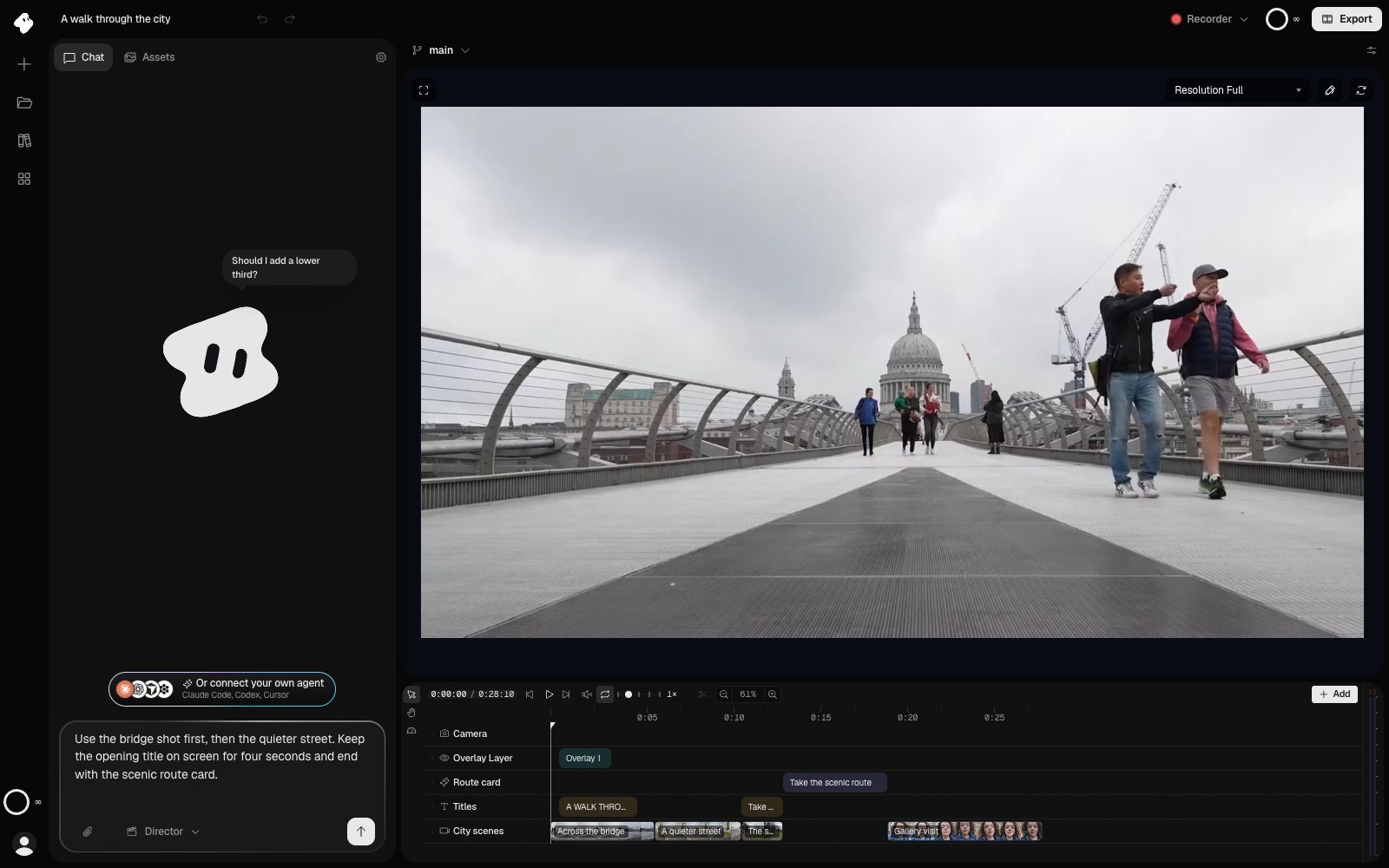
A useful brief names the material, order, and timing. This request is drafted in the composer and has not been sent.
Select the image to open the original full view.
Export, share, and connect an agent
Render MP4, save an editable Vidova package, or hand off a timeline package to Premiere Pro or DaVinci Resolve. Render the MP4 in the cloud, which keeps going after you leave the editor, or for free on this device. Finished-video links can be public or limited to selected email addresses.
Connect a compatible external agent through MCP to work on your account’s projects. The editor, built-in chat, and external agents share the account’s credits. Read Exporting and sharing, MCP server, and Plans and credits before choosing a delivery or automation workflow.