 Vidova
Find the work you started
Long work shows its progress where you started it:
- Uploads show their progress on the file’s card in Assets.
- Generations and analysis that chat starts show a progress card in the chat until the result is ready.
- Cloud exports show their progress in the Export window, and in chat when a chat is open.
- Exports on this device show their progress in the Export window. Keep the tab open until they finish.
Check the progress of an operation before you submit it again. Starting the same work twice can use credits twice.
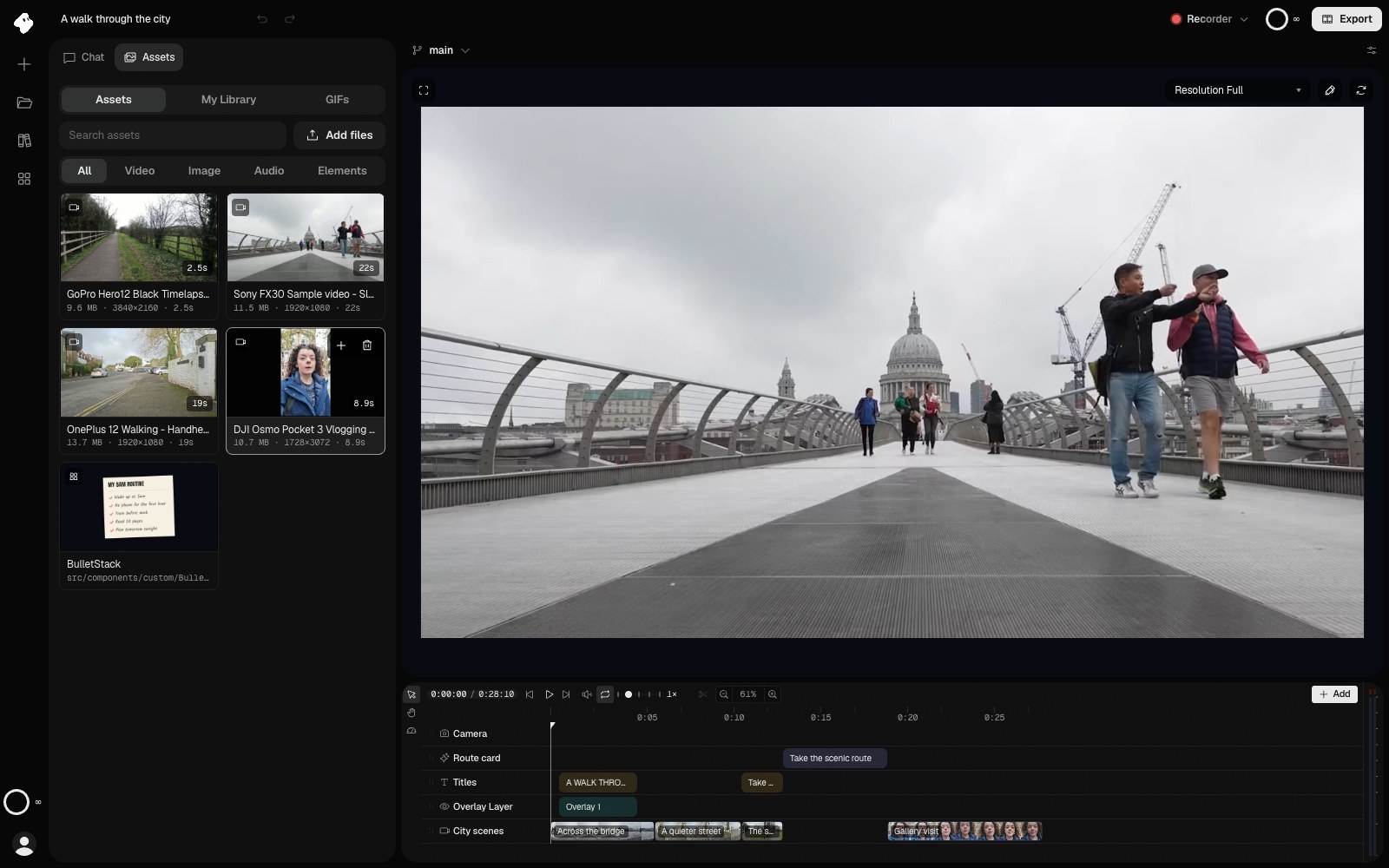
Assets holds the footage and elements in this project. Point at a card and choose + to put it on the timeline at the playhead.
- Add puts a clip of this asset at the playhead.
Select the image to open the original full view.
Stop or retry
Choose Stop export in the Export window to cancel a cloud export, or Cancel during an export on this device. To stop the agent while it works, use the stop button in chat.
Before you retry a failed operation, check that the input media has finished uploading and that your account has enough credits. Credits set aside for work that fails come back. If the same task keeps failing, contact support with the error reference it shows.
Reuse a completed analysis
Transcripts, beat analysis, and tracks stay with the project after they finish. Ask chat to reuse a saved result for captions, timing, or an element that accepts that kind of input, instead of analyzing the same source again.
For example, a completed transcript can supply captions without transcribing the source again. A beat result can help time a cut, while a tracking result describes a subject’s movement. See Captions and transcripts, Audio and music, and Analysis and effects.
Follow a job started by an agent
Some tools return a Job ID while work continues. Ask the agent to check that job and use its completed result. Starting the same operation repeatedly can create duplicate work and use more credits.
Check the source clip and requested time range if the completed result looks unexpected. Analysis times refer to the source media, which can differ from the time shown in an edited film. See Timeline for offsets and playback speed.