 Vidova
Change a repeated value once
A project variable gives a name to a value you reuse, such as a brand color, product name, or target number. Link compatible clip fields to that variable, then change it once to update all of those fields.
Creating a variable alone does not alter the film. A field must be linked to it. This makes variables useful for a recurring title style or a component that appears in several places.
Create a variable
Ask chat to create the variable. Give it a descriptive name, a type, and a value:
Make a String variable named seriesTitle set to “City walks”, and a Color variable named brand set to #F26B1D.
Choose the type with the value in mind: changing a variable’s type later resets its value to that type’s starting value.
| Type | Suitable values |
|---|---|
| String | A name, headline, or other text |
| Integer | A whole number, such as a count |
| Number | A numeric value that can include a decimal |
| Boolean | An on/off choice |
| Color | A color selected with the color control |
| Enum | One value from a list of comma-separated Options |
Link a clip field
- Select the clip and find the field in the Inspector.
- Look for the Variable selector below a compatible control.
- Choose the variable. The field now shows Linked to and its name.
- Ask chat to change the variable’s value, then review the linked clips.
The selector appears only when a matching variable exists. A Boolean variable is suitable for a switch; a numeric variable is suitable for a number field. Some text and color types are compatible, but matching the variable’s type to its purpose keeps the project easier to understand.
Element inputs can use variables too. Media and analysis references have their own inputs; they do not use the text/color/number variable selector.
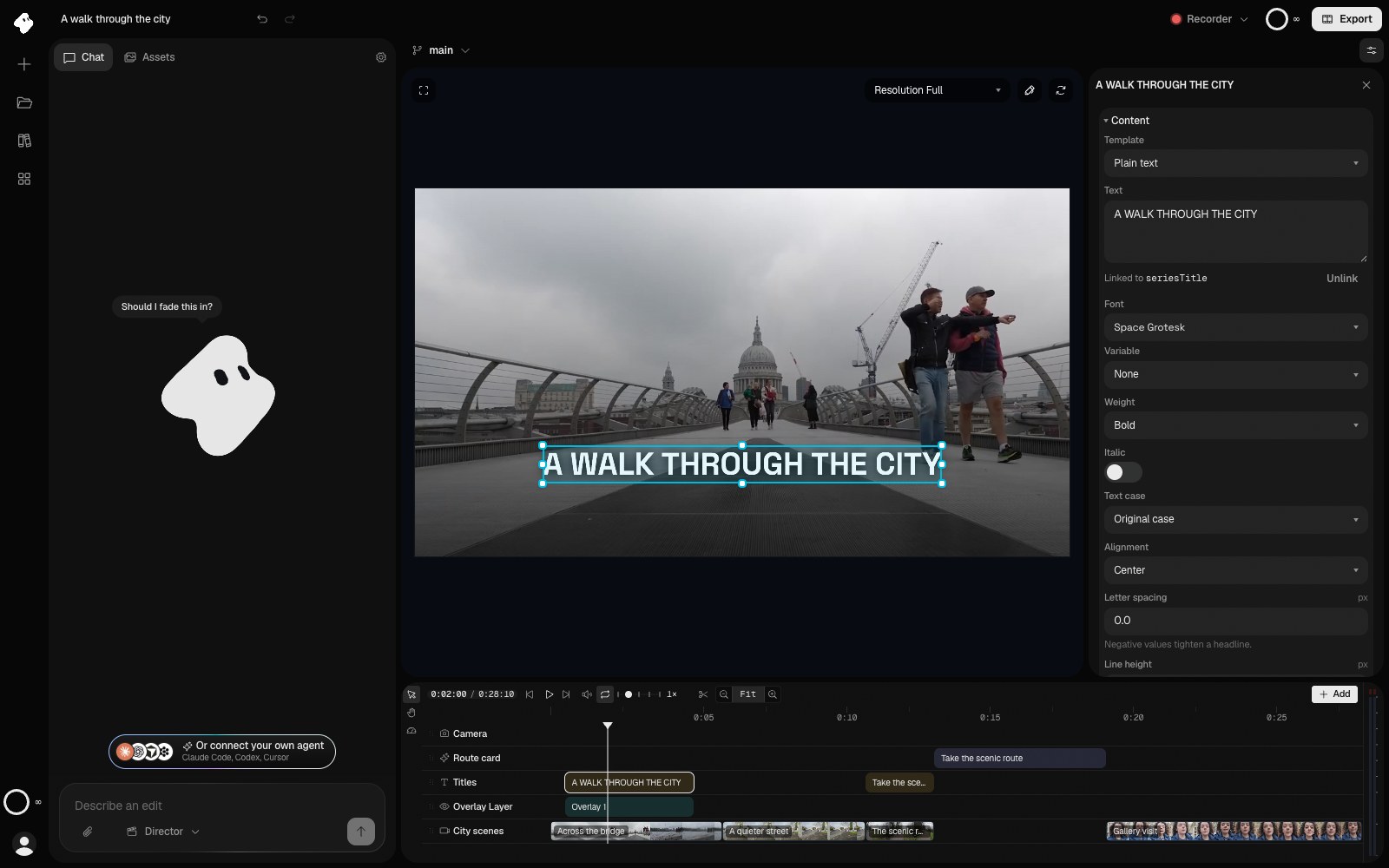
The title's text is linked to seriesTitle, which holds the same words. Change the variable to update every linked field; Unlink makes this field independent again.
- The text is linked to the seriesTitle variable. Unlink makes it independent again.
Select the image to open the original full view.
Example: a consistent series title
Create a String variable named seriesTitle and set it to “City walks”. Link the wording of each recurring title to it. Create a Color variable named brand and link the title colors you want to keep consistent.
Changing seriesTitle updates the wording; changing brand updates the linked colors. The clips keep their individual timing and placement. Use Versions and undo if you want to compare two designs before choosing one.
Make one field independent
Choose Unlink beside a linked field. Vidova keeps its current resolved value, and you can edit that field independently again.
Unlink fields you want to keep before removing their variable. Review the film after changing a variable’s type or options, especially when several components depend on it.